Enter, edit, and save reporting values - SolvencyBridge Help
Tento článek v jazyce čeština chybí, je zastaralý nebo ještě nebyl zkontrolován. Zobrazuje se závazný anglický zdroj.
Příprava výkazu
Enter, edit, and save reporting values
Work safely with reporting values, currency evidence, context dimensions, and calculated fields.
Verze 2026.8.15 minAdministrátor · ZpracovatelZkontrolováno 2026-09-14
Who can perform the task
Administrators and preparers with edit access to the table while the filing is in draft or changes requested.
Before you begin
Confirm the entity, period, template, unit, scale, and source evidence. Understand whether the table has fixed rows or open rows identified by context dimensions.
Quick path
Open the applicable reporting template.
Select the required cell or range and confirm its label and codes in the selected-cell bar above a fixed-row grid. Check the unit in the template and column heading before entering values.
Enter, paste, copy, or clear values using the spreadsheet controls.
Wait for autosave and confirm the saved timestamp.
Run validation and resolve any finding caused by the new value.
Detailed guidance
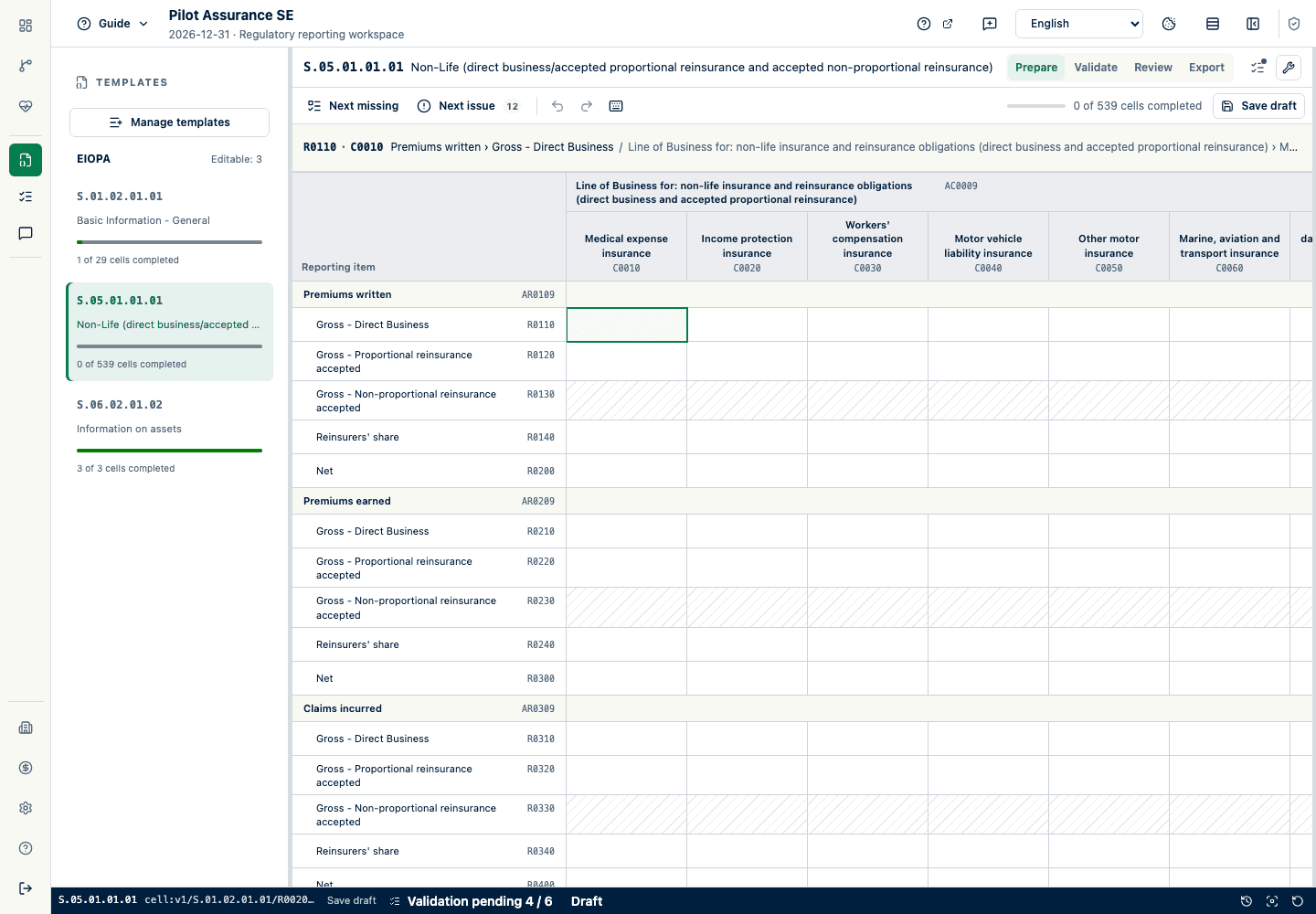
If the template is not in the filing navigation, choose Manage templates, search the combined EIOPA and national catalog, and add it. A removed template can be added again with its prior values and history intact. Then choose the template in the filing navigation. The workbench keeps the active grid as the central surface while a compact activity rail opens Filings, Templates, or Validation at the left. Use the Prepare, Validate, Review, and Export phase controls beside the template name for the primary workflow. On a phone, the phase controls move to their own line below the template name. The bounded activity panel supports the selected phase and provides edit history, source evidence, and filing utilities without scrolling away from the current table. Selecting a phase or activity always updates the highlighted phase and the visible panel together. In Manage templates, an EIOPA template marked Not in this module has no editable worksheet in this filing and cannot be added; create or use a filing with the matching reporting module instead. Updates show their result at the top of the manager. The grid uses condensed row spacing by default; switch off in view options when you need a roomier table. Row groups, such as , appear as shaded rows across the grid, and their items are indented beneath them in one fixed label column, so more of the reporting values stay visible on smaller screens. Choose the assistant button in the activity rail when you need guidance. The assistant remains available while you move between tables during this filing session. On a phone, choose in the table toolbar to open a focused drawer for filings, templates, or validation issues; the reporting grid stays out of the drawer. The reporting-item column stays narrow enough on a phone to leave room for the values beside it. The status bar lets you enter to temporarily hide every secondary panel and restores the previous arrangement when you leave Focus.
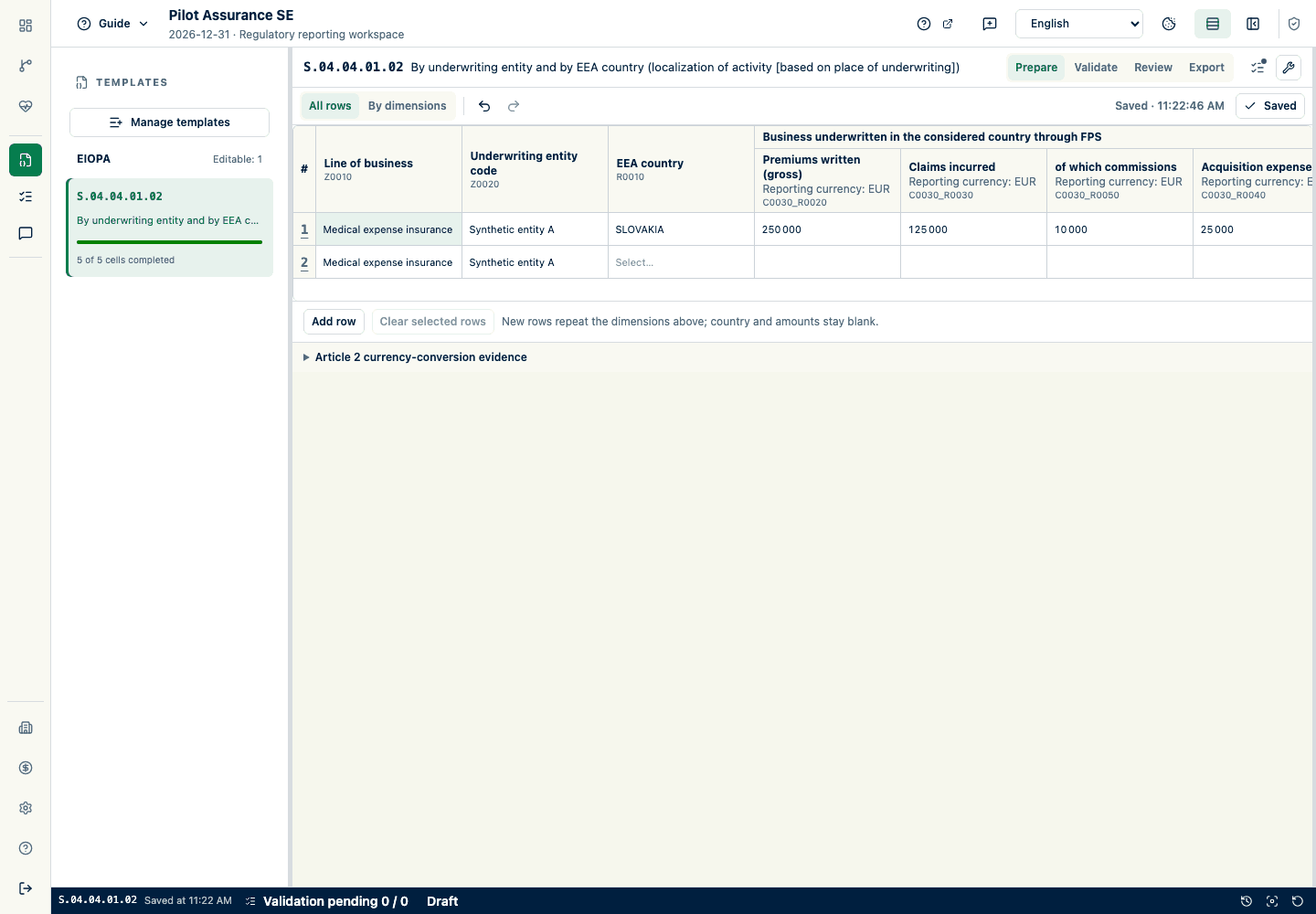
For an open table, add or select the row context and enter every required dimension before values. To remove entered row data, select one row number or a range of row numbers and choose Clear selected rows. Confirm the number of non-empty rows affected. Every editable value in those rows is cleared as one undoable change; the row numbers remain as blank gaps and later rows are not renumbered or shifted. In All rows, Z-axis dimensions are retained when the reporting values are cleared.
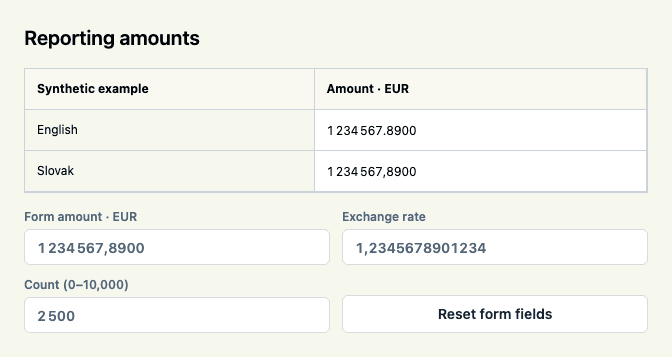
Enter values using the displayed data type and unit. The grid accepts the decimal separator used by your interface language. EIOPA and supported national numeric cells group digits with thin spaces as you type, so 1234567.89 appears as 1 234 567.89 in English or 1 234 567,89 in Slovak. You can edit digits in the middle, paste grouped amounts, enter negatives, or clear the cell. Grouping changes the display only; it does not round values or change the template's unit or scale. Enter the full amount required by the template, rather than abbreviations such as 1.2m. Use digits, a leading minus sign for negative amounts, and the displayed decimal separator while editing. Incomplete or malformed numeric entries must be corrected before submitting a form, including optional fields. Clear an optional field to leave it blank. Existing invalid values remain visible for correction; grouping is applied once the value is numeric. The canonical value is stored after you leave the field. To clear a dropdown selection, choose Select… and wait for the saved confirmation. The cell stays blank after saving or refreshing; blank is not the same as zero or No. Empty numeric cells show no zero placeholder, so a blank cell is never mistaken for a reported zero. Required fields may still produce a validation finding until completed.
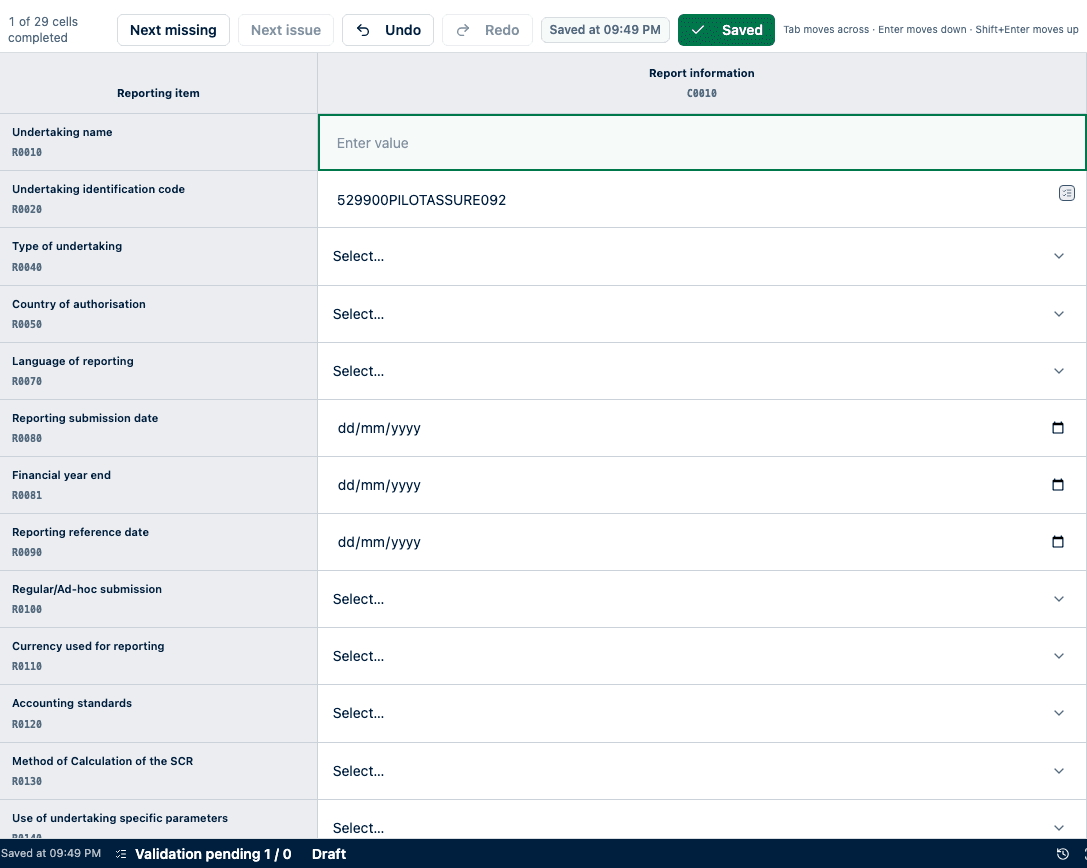
Click a cell to select it. Drag across cells, or hold Shift while clicking or using an arrow key, to extend a rectangular selection. Arrow keys move the active cell, Tab moves across columns, and Enter moves down. Press F2, double-click, or start typing to edit the active cell; while editing, normal text-field arrow behavior is preserved. In fixed-row and ordinary open-row EIOPA grids, the selected-cell bar above the grid shows the active cell's row and column codes, its full row and column labels, whether it is required, calculated, or read only, its validation finding, and any prior-period value. Grid cells show only a compact marker for a finding, suggestion, or review note, so rows keep the same height while you work. Choose the keyboard button in the table toolbar to see the entry shortcuts. Next missing and Next issue scan the complete template, including open-table rows outside the visible virtualized window. On a narrow table they show icons only; their names remain available as tooltips and to assistive technology. Selecting a field also updates the assistant's current context, so you can ask about it without navigating away from the table.
Copy a selected rectangle to place tab-separated values on the clipboard. To paste a rectangle copied from Excel or another spreadsheet, select its top-left destination cell and paste. Contextual open-row tables apply valid pastes into empty cells immediately and preview overwrites, as described below. In other EIOPA tables, review every proposed before/after change, then choose Apply changes; that paste is cancelled as a whole if it reaches an unavailable or calculated cell or contains an invalid value. Structured national-form tables apply compatible values to their authority-typed fields and leave protected cells unchanged. Pasting one value into a larger selection fills every editable selected cell.
Press Delete or Backspace to clear the editable cells in the selection. Calculated and protected cells remain unchanged. Use Undo and Redo in the table toolbar for manual edits, dropdown changes, prior-period reuse, applied pastes, and range clears. Ctrl/Command+Z undoes the last step; Ctrl/Command+Shift+Z redoes it, and Ctrl+Y also redoes on Windows. The bounded history lasts only while this reporting screen and template remains open; contextual open-row views share this history across dimension combinations. Reloading, changing template, or making a new edit after undo clears the applicable screen history. Undo and redo still autosave their resulting values as attributable changes.
In a fixed-row EIOPA grid, where the same entity, taxonomy, and template exist in the prior filing, select a cell and compare the prior-period value and period shown in the selected-cell bar. If it is still correct and differs from the current value, choose Use prior-period value to apply it explicitly.
Review calculated values; do not treat a calculated field as manually editable. For a match or sum validation with one mechanically provable correction, choose the suggestion icon in the cell, or select the cell and choose Review calculated total or Suggested value available in the selected-cell bar. These controls open the before/after and full-filing validation preview. No suggestion changes data automatically. While you edit a fixed-row EIOPA template, implemented cell, cross-cell, cross-template, prior-period, and EIOPA formula rules use the unsaved values already in the browser and update affected cell feedback immediately. The saved full-filing validation remains authoritative and still covers server-only national, attachment, and export checks.
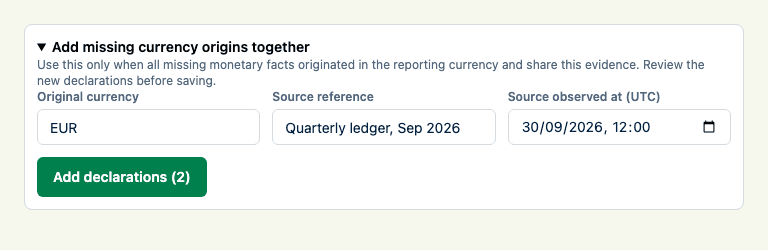
For a monetary table, expand the guided currency evidence section at the bottom of the table when the filing needs Article 2 conversion evidence, a currency-origin declaration, or an additional S.16.01 original-currency amount. Choose the reporting item, select the business meaning in plain language, complete the labelled currency, amount, date, rate, and source fields, then save that section. If no record applies, leave the section empty; you do not enter or edit JSON.
National fixed and repeating tables use the same spreadsheet selection, keyboard, and multi-cell copy-and-paste controls. For a Slovak NBS national form, complete the labelled reporting-entity fields and use the official NBS matrix or add-row table shown for that form. Empty repeatable sections explicitly say that no records have been added. An added repeatable row always has a remove action; fixed authority rows are cleared instead because their identity is part of the form definition. Supporting NBS evidence is entered through labelled fields, confirmations, and record cards; do not enter a serialized payload. National forms also share the EIOPA table toolbar: Next missing moves to the next empty entry cell and opens a collapsed section when needed, the cell count shows progress whenever the whole form is on screen, and Save draft saves immediately. The workspace header names a national form by the authority's own title where the source publishes one, and otherwise by its form code alone. National forms use the same Prepare, Validate, Review, and Export phases as EIOPA templates. Validate opens filing Problems, Review keeps the national form visible read-only beside the common review panel, and Export shows the controls applicable to that authority profile.
For Hungarian MNB and Maltese MFSA workbook forms, enter data only in the displayed official input cells. Austrian FMA and Spanish DGSFP DEC forms use add-row authority records with the official field codes shown as reference text. Date fields use a date picker, authority enumerations and pinned country or currency code lists use selections, boolean fields use the authority's accepted values, and numeric fields retain exact numeric input. A code remains free text only when the retained public source does not contain its permitted values. The workspace loads the visible portion of large authority forms so the filing page remains responsive.
Watch the live cell count and save state for EIOPA and national forms in the common top toolbar and bottom status bar. Autosave runs on its own; Save draft in the table toolbar saves immediately when you do not want to wait for the autosave delay. Editing marks the form as Unsaved changes; after the short autosave delay, wait for the timestamped saved confirmation. When you change several EIOPA or national-form cells while an earlier autosave is finishing, the newer values stay in the grid and are included in the following save. A background refresh also preserves a queued autosave, including edits to imported rows; wait for Saved before reloading the page. National-form fields remain editable while a save is running. Changes made during that request are kept locally and saved immediately afterward as the next revision; wait for Saved before leaving the form. If a save fails, an alert appears beside the form and as a notification at the top of the workspace, while the entered values remain available for a retry. After a failed national-form autosave, Save draft changes to Try again; choose it to retry the save. NBS fields use the data type in the pinned authority definition. Monetary, decimal, percentage, and integer cells accept numeric input only, and the server rejects a newly entered value that does not match that definition. Dates use a date picker, yes/no fields use the NBS A or N values, countries use pinned ISO country codes, and email and phone fields use matching input controls. Every NBS monetary column and amount input shows EUR, the currency required by the supported NBS form contract; the accessible field name also includes the currency. KNF-02 uses the official form for the filing's reporting year: the retained 2026 release for 2026 periods and the retained 2027 release for 2027 periods. The 2027 release keeps the same section and cell layout. KNF amount cells and technical-account references show PLN. BaFin and national XBRL monetary inputs show the fact currency or the reporting currency configured for the filing, including in the accessible field name. Forms with a currency-selection cell continue to use that selected currency instead of displaying a fixed currency. An invalid value retained from an older draft stays visible and highlighted so it can be corrected; it does not prevent unrelated draft changes from being saved, but it must still be corrected before submission. If another user saves a newer version first, the workspace stops further saves without discarding your local edits. Copy the unsaved values before choosing Reload latest version; do not attempt to overwrite the newer filing data. If a historical payload cannot be represented safely, editing remains blocked. Only an administrator can open the collapsed, read-only preserved payload diagnostic; it cannot be used to change filing data.
In Review, use the labelled cell markers to open the exact validation finding, period movement, required explanation, or source evidence for that cell. The marker supplements colour and does not change the reported value.
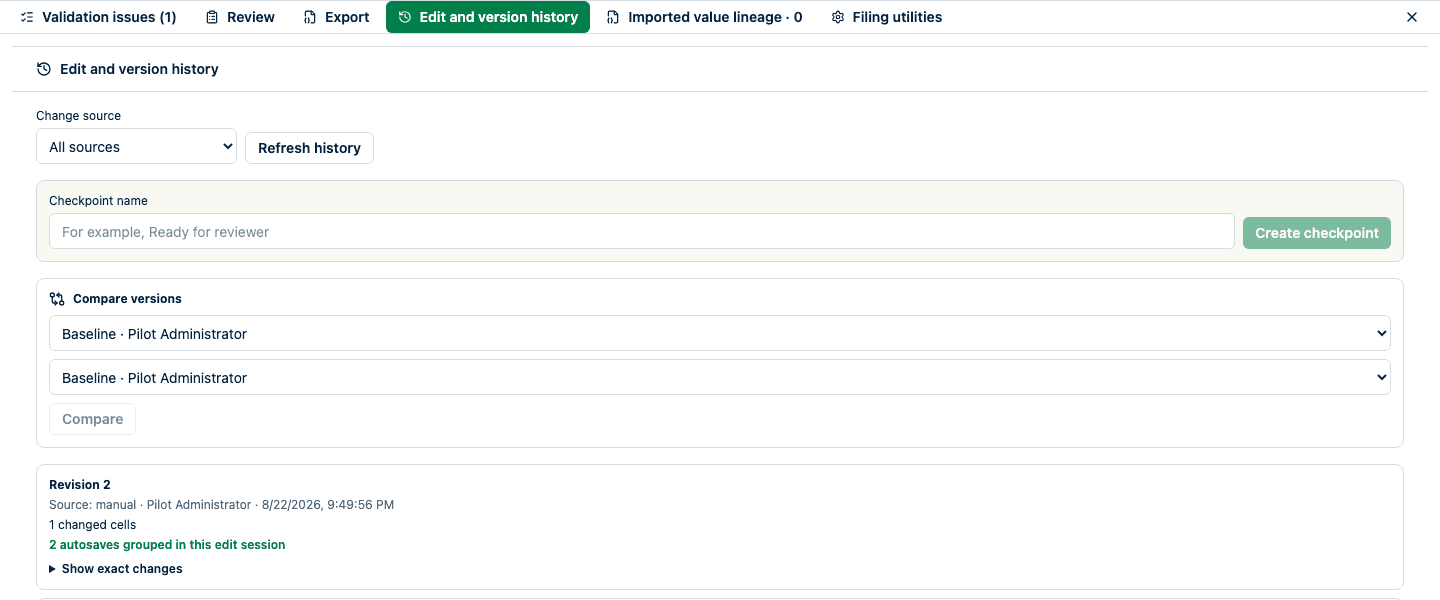
Expand Edit and version history to review who changed each value and whether it came from manual entry, paste, prior-period reuse, undo, redo, import, validation correction, calculation, or an explicit open-row clear. You can filter to the focused cell, compare two versions, or name a checkpoint before review. Consecutive manual autosaves from the same open editing session are grouped into one entry showing the first before-value, latest after-value, and save count.
To return to an earlier version, choose Preview restore. Review the exact cell changes and the before/after validation counts, then confirm. Restoration always creates a new attributable revision; it does not erase later history.
Continue until the completion summary reflects the intended state.
Ask a question
In the filing assistant, type a question and choose Send or press Enter. Use Shift+Enter for a new line. While a request is running, the question box and send control are disabled. If the request fails, your question remains available to retry. Existing consent controls still determine whether a typed question uses external AI, and suggested values require explicit application.
Enter open-row templates with Z-axis dimensions
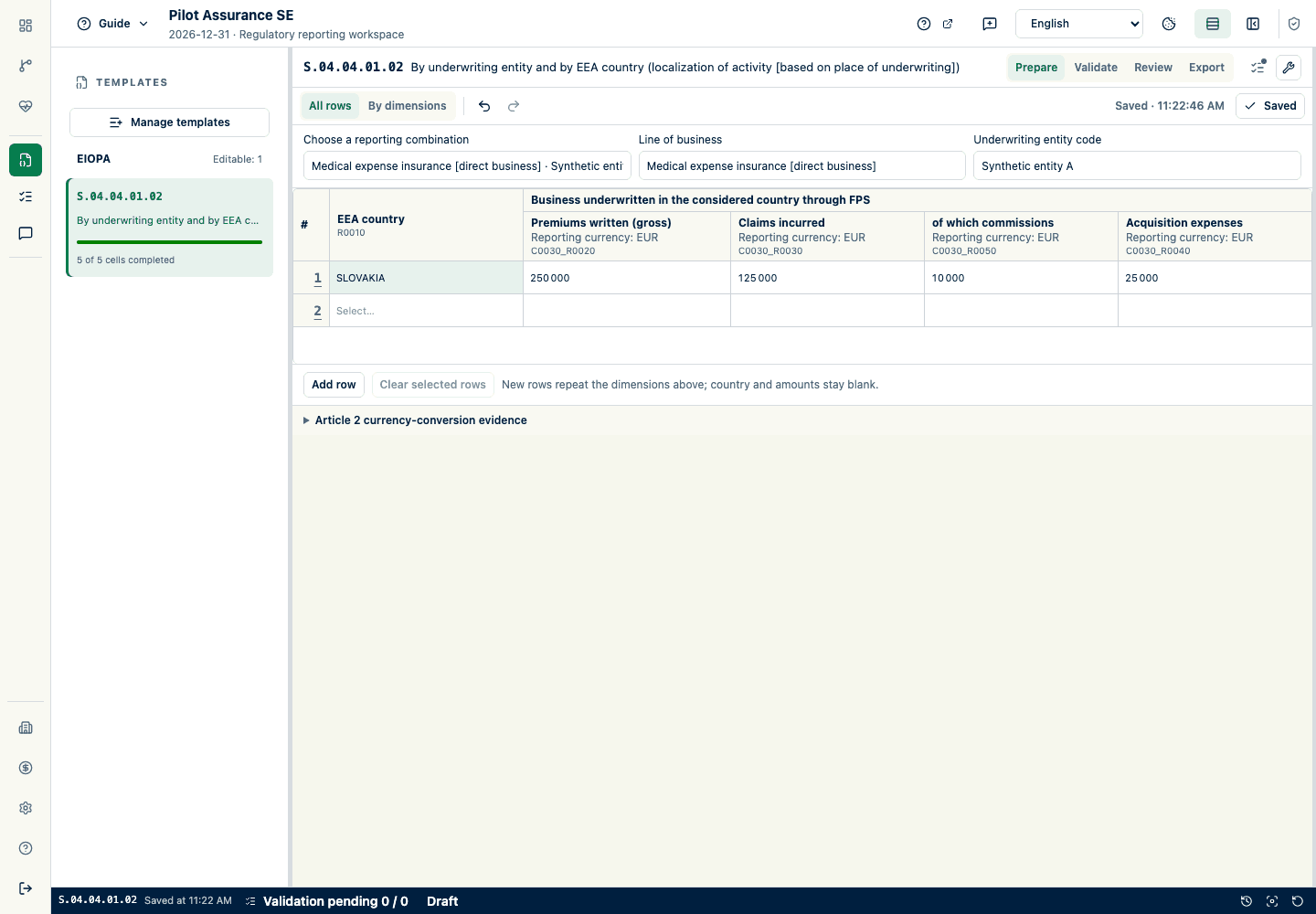
Use All rows to enter several reporting combinations in one sheet. The leading columns contain the Z-axis dimensions, followed by the template's ordinary reporting fields. By dimensions shows one combination at a time. Desktop opens in All rows and narrow screens open in By dimensions; your chosen view and dimensions are remembered for the current signed-in browser session. Both views edit the same facts.
Type a country code or search its translated name, then press Tab to accept and continue across the row. Enter moves down the column. When advancing past the last populated row, the editor creates another row and repeats only its Z-axis dimensions. Countries and amounts remain blank. Free-text dimensions are committed when you leave the field or press Enter. Complete every required dimension before saving a reporting row.
Paste a rectangular range from Excel directly into the grid. In All rows, include dimension columns when pasting new combinations; empty pasted dimensions are not inferred. In By dimensions, pasted rows use the selected combination. Valid pastes into empty cells apply immediately. A paste that changes existing values, including zero or clearing a value, requires an overwrite preview for the entire range. Confirm with Enter on Apply paste, or cancel without changing any values. Paste or clear at most 500 rows in one action. Invalid options or protected destinations prevent the whole paste from applying. Undo restores a paste as one operation.
Autosave shows Unsaved changes, Saving…, and a saved timestamp. A failed save preserves your entries. Correct the reported problem, then choose Save draft to retry your current entries, including corrected dimensions. Changing the selected combination waits for pending saves and retains the current combination if saving fails. Changing a saved row's dimensions keeps its hidden record identity and moves its facts together; it does not transfer historical source evidence or approval to a new fact address. Reconcile any resulting evidence and validation findings.
Monetary column headers show the filing’s reporting currency beside the field label, including acquisition expenses. Enter the full amount in that currency; the displayed currency does not scale amounts into thousands or millions. Original-currency fields are identified separately. A dash beside reporting currency means it has not been supplied; check the filing setup before entering amounts. Country and other non-monetary columns do not carry a currency label.
Fixed-matrix templates retain their matrix layout. Searchable dimension controls and the list of existing combinations reduce repeated selection. After searching, use the arrow keys to highlight an option and press Enter or Tab to select that highlighted option.
Record original currency evidence together
Below the reporting grid, expand Article 2 currency-conversion evidence. Under Article 2 currency-origin declarations, choose Add missing currency origins together only when every missing monetary amount in this template originated in the reporting currency and shares the same source evidence. Enter its original currency, source reference, and observation time in UTC. Select Add declarations, review the individual drafts, then select Save origins. Leaving the bulk fields empty does not prevent saving your reporting values. Existing declarations, including converted amounts, are preserved. The bulk action creates drafts; it does not save or infer source currency. Record different currencies or sources individually. Wait for Origins saved before continuing.
Expected result
Forms retained from an older taxonomy migration use the same editing and saving workflow as other forms. Select the form in the filing; no internal identifier is required. The filing's access, review, and locking rules still apply.
Saved values remain after refresh and appear in completion and validation calculations. After a large asset import, wait for validation to finish before using the findings for review or export. A completed import does not mean that validation has finished. Open-table entries have unique, correct dimension contexts. Prior-period values in fixed-row EIOPA grids remain unchanged until you choose Use prior-period value. Contextual open-row pastes into empty cells apply immediately; overwrites require a preview. Other reporting grids retain their existing paste preview. Fixed-row EIOPA edits show implemented portable rule failures before autosave; the full saved validation can still be pending or report additional server-only findings. Version restoration also remains a preview until explicit confirmation and preserves every existing revision.
The saved state is visible in the grid header; values still require source reconciliation.
The history is an audit aid for reporting values. A checkpoint names a known state without locking or approving it. A new browser editing session or five minutes without a save starts a new manual history entry. Paste, import, correction, assistant, checkpoint, and restore operations always remain separate boundaries.
How to verify
Refresh the page, return to the table, and reconcile values with the source. Check units, signs, decimals, row dimensions, calculated values, prior-period differences, pasted ranges, and new validation findings. Use the focused-cell history filter when reconciling one value, and compare a checkpoint with the current revision before handing the filing to a reviewer.
Common problems
A disabled value may be calculated, not applicable, outside your table access, or locked by workflow status. Cells that do not apply use a subtle diagonal pattern and cannot be edited.
A spreadsheet paste is all-or-nothing. Shorten or move the copied rectangle if its preview reports an unavailable, calculated, or invalid destination.
Bulk clear skips protected and calculated cells. Use the 10-second undo action immediately if the editable cells were cleared by mistake.
Clear selected rows affects only explicitly selected, non-empty editable open-table rows. It deliberately leaves blank numbered gaps; use Undo if you selected the wrong row numbers.
Prior-period values are offered only for a compatible filing and still need source reconciliation for the current period.
A duplicate open-row context must be corrected; do not differentiate identical business contexts with arbitrary labels.
Currency evidence can only be added after the corresponding monetary value exists in the reporting grid. Three-letter currency codes must use ISO 4217 uppercase letters, and source observation times are entered in UTC.
Saving one table does not resolve findings elsewhere.
Audit and locking consequences
Saved changes are attributable and may change calculated cells and validation results. After approval, normal editing is locked. An authorized administrator must reopen with a reason before corrections. An active manual edit session can grow until its five-minute idle boundary; finalized history entries and checkpoints are retained. Neither constitutes review or approval.
Product and regulatory limitations
Input controls check implemented formats and rules; they do not establish the business correctness of a value.
Read large amounts while editing
The synthetic example below shows the same exact amount using English and Slovak decimal separators, alongside amount, exchange-rate and count fields. The same entry behavior is used for original-currency amounts and conversion rates, filing setup amounts, period-comparison thresholds, and IRRD numeric fields. Grouping is a display aid; values are submitted without grouping, and existing count, percentage and duration limits still apply. Identifiers, tax numbers and reporting years keep their literal format.