Prepare and approve an IRRD recovery plan - SolvencyBridge Help
Dan l-artiklu huwa nieqes, skadut jew għadu ma ġiex rieżaminat bil-Malti. Qed jintwera s-sors awtorevoli bl-Ingliż.
Ħejji rapport
Prepare and approve an IRRD recovery plan
Configure solo or group scope, calculate governed scenarios and actions, approve immutable evidence, and respond to operational IRRD triggers.
Verżjoni 2026.8.115 minAmministratur · Min iħejji · Rieżaminatur · Qari bissRieżaminat 2026-09-06
Who can perform the task
In the workspace's bottom-panel tab strip, use Left and Right Arrow, Home, or End to move focus, then Enter or Space to activate a tab. Use Tab to continue through the controls and selected panel without changing the recovery-plan section.
Preparers and administrators create recovery plans, bind approved source facts, set the undertaking's approved warning and breach thresholds, calculate results, and submit a current plan for review. Reviewers and administrators can approve the exact calculation submitted for review only when they did not create or submit that plan. They can also return it for correction with a required comment. Read-only users can inspect plans and calculation evidence available to their organization.
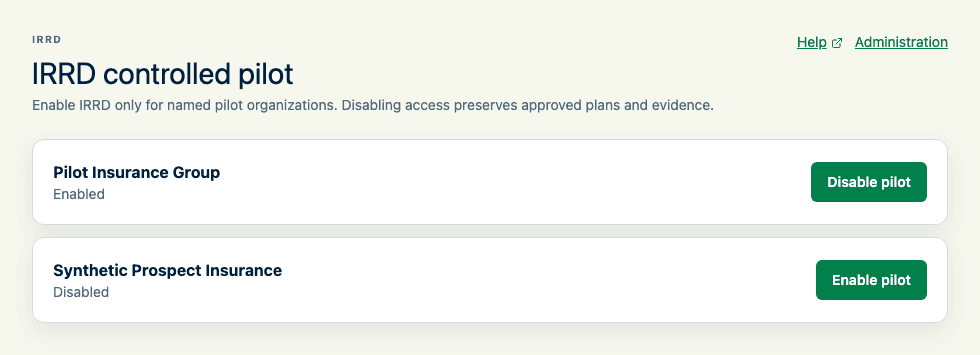
IRRD is a controlled-pilot feature. A platform administrator must enable the named organization before its navigation, pages, actions, background jobs, and notifications become available. Disabling access preserves approved plans and evidence but stops further IRRD access and execution.
Before you begin
When saving recovery-plan content, correct any field highlighted by a validation message and retry. Your text stays in the form after a failed save. If you continue editing while a save is pending, save those newer edits again after the first save finishes.
Confirm the reporting entity, plan period, source-data observation date, and the approved source snapshot. Agree each threshold through the undertaking's governance process. Prepare the undertaking profile, governance and escalation arrangements, communication strategy, and an approved supporting document such as the ORSA or liquidity plan. The supporting reference requires its document identifier, revision, and uploaded source document; a title alone is not provenance. Upload PDF, XLSX or CSV documents of up to 20 MiB using Evidence documents, then select the document when saving a reference, authority decision, or FX source. SolvencyBridge computes and verifies file integrity automatically; users never enter technical checksums. Documents are shared within the organization and can be downloaded from this panel, including when preparing renewal drafts. Existing recorded evidence can be kept unchanged; changing its source reference requires selecting an uploaded source document. Uploading a document does not establish authority acceptance or replace independent plan approval. The initial catalog covers the indicator families described in EIOPA's IRRD indicator guidance, but its formulas are labelled unless a definition explicitly records a regulatory methodology. SolvencyBridge does not invent universal authority thresholds.
Confirm that the controlled IRRD pilot is enabled and that you have the required role.
Define the plan scope, recovery indicators, sources, thresholds, and governance owners.
Run the governed calculations, scenarios, and operational feasibility checks.
Review source readiness, assumptions, exceptions, and approval evidence.
Approve the immutable snapshot and monitor subsequent trigger events without treating the product as regulatory advice.
Enter amounts, rates and thresholds
Numeric source facts, FX rates, scenario assumptions and indicator thresholds use grouped thousands and your interface language's decimal separator. Enter the full value in the labelled unit; grouping does not scale or round the amount. Counts and durations retain their existing whole-number and range requirements. A form reset restores its initial values; a failed save keeps entered values for correction and retry.
Set scope and proportionality
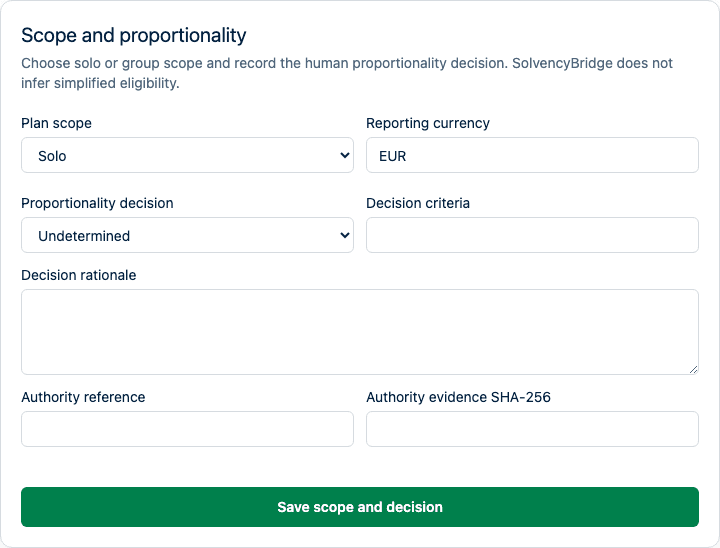
Record whether the plan covers one undertaking or a group. A solo scope pins the undertaking and reporting currency. A group scope also pins the lead undertaking, every included legal entity, membership dates, approved source snapshot and checksum, reporting currency, FX evidence, and explained elimination adjustments. Additive facts are converted with the pinned rates and summed before ratios are calculated. Ratios are never averaged. A non-additive fact needs an approved group-level source fact.
Group approval fails closed when a member or member fact is missing or stale, an FX rate is absent, periods or units conflict, an elimination lacks evidence, or a required group-level fact is unavailable.
Record proportionality as Undetermined, Standard, or Simplified. For Standard or Simplified, record the criteria, rationale, author, time, and authority evidence when available. SolvencyBridge does not infer simplified- obligation eligibility. Undetermined proportionality cannot cross review.
Import Excel values into a solo draft
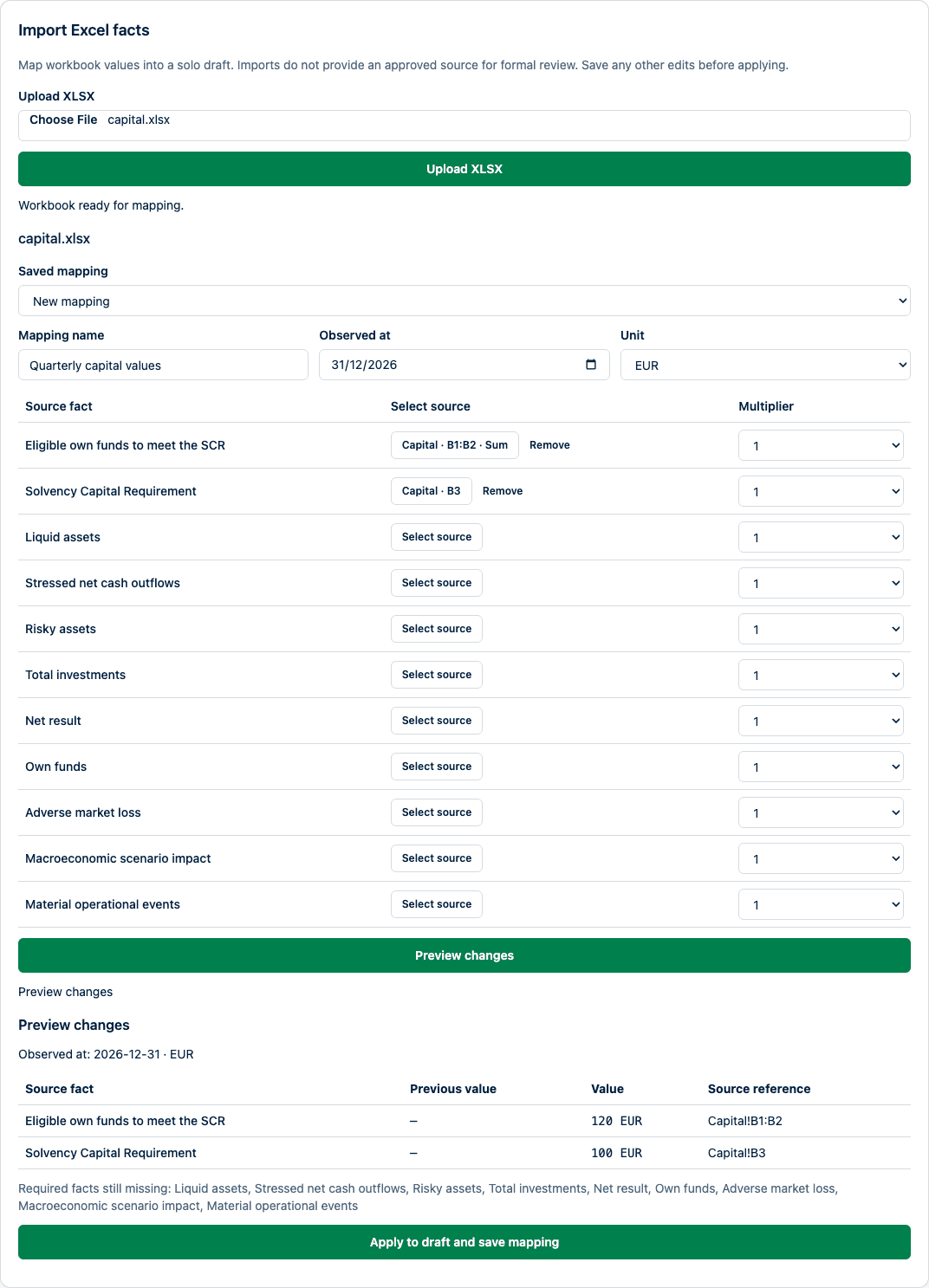
Preparers and administrators can upload an Excel workbook under Source facts in a solo draft. This is a manual preparation aid: imported values cannot supply the approved source required for formal review or approval. Group plans continue to use their governed group sources. No recurring ingestion or customer-system connection is created.
Save other plan edits, then choose an unencrypted XLSX file and select Upload XLSX. Wait for the workbook to pass upload checks.
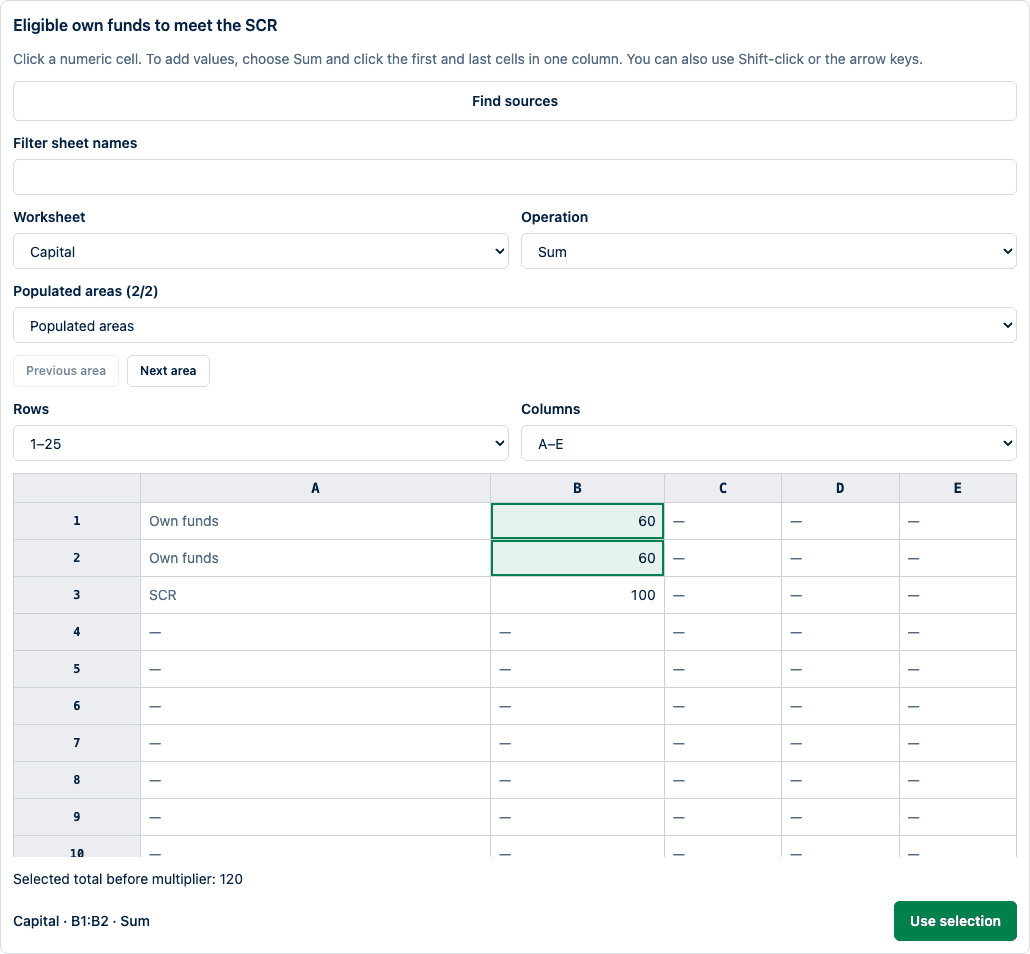
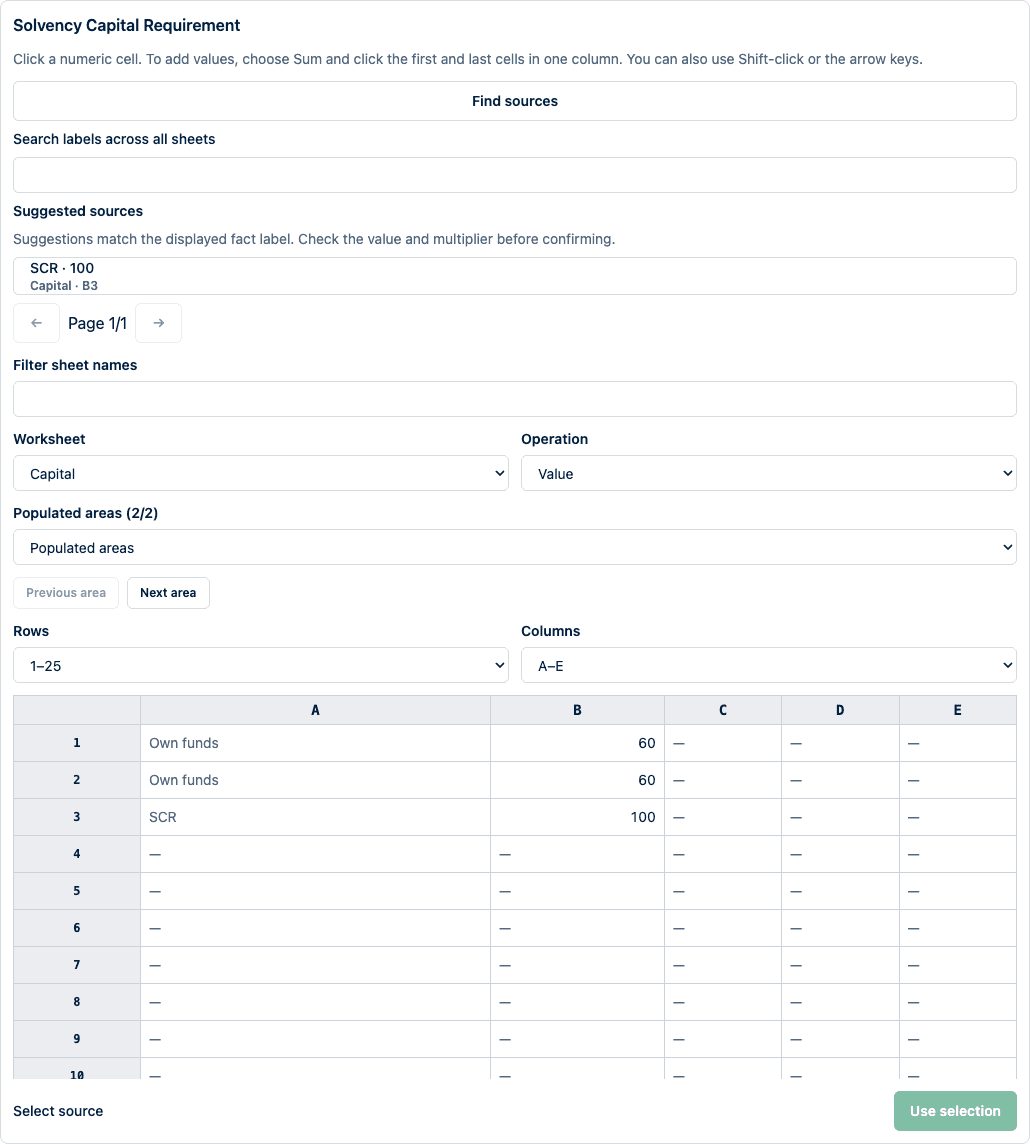
Select a saved mapping, or name a new one. Select source beside a fact opens the uploaded workbook as a visible worksheet grid. Choose a worksheet; hidden sheets are labelled. Rows and Columns navigate throughout the workbook, beyond the initial view. Each view shows up to 25 rows and 8 columns. Populated areas jumps to regions separated by blank rows or columns, labelled with nearby worksheet text. These are navigation aids, not detected business tables. The selector shows up to 200 areas and the total detected count; Previous area and Next area reach every detected area, including those beyond the selector's limit. Filter sheet names narrows worksheet choices; the current sheet remains available while filtering. Find sources searches labels across all sheets, including hidden sheets and cells outside the current view. Results show worksheet names, locations, and text, with 25 results per page. Choosing a result opens that location and clears any unconfirmed cell selection; existing mappings remain unchanged. With an empty search, Suggested sources lists numeric cells immediately to the right of or below matching fact labels. Matching ignores case, accents, punctuation and spacing; it recognizes the displayed English fact names and short names such as SCR. It does not infer customer terminology, years, units, multipliers or sums. Multiple candidates remain separate choices. Choosing a suggestion highlights its value for inspection: you must still choose Use selection, check the multiplier, and preview before applying it.
Click a numeric cell and choose Use selection. To add values, choose Sum, then click the first and last cells in one column. Shift-click also extends a selection; arrow keys move focus and Shift-arrow extends it. The selected cells are highlighted and the resulting source appears beside the fact. Cell addresses are shown as provenance; you never type them. Remove clears a mapping and leaves that fact's existing draft value intact. The whole selection is checked, including cells outside the visible page. Formulas, merged or unsupported cells, blanks, and nonnumeric values are shown with their source locations. Up to ten issues are listed with the total count. Correct the selection before using it. A valid selection shows its total before applying the multiplier. If the check fails to load, retry; the selection is kept.
Confirm the observation date and reporting currency. Set Multiplier to 1, 1000, or 1000000 to convert source amounts into the displayed unit. Counts require nonnegative integers and multiplier 1. There is no currency conversion, inferred unit, or guessed observation date.
Select Preview changes. Compare existing and proposed values and their source cells. Correct every reported issue and preview again. Missing required facts may remain in a partial draft, but calculation and approval checks still apply. Editing a mapping hides its old preview until you preview again.
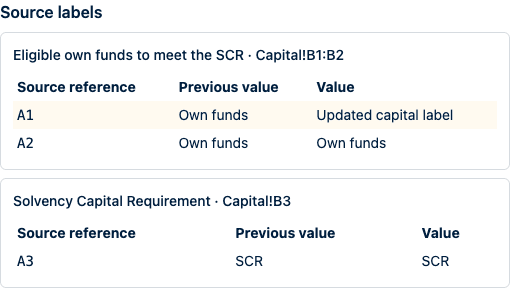
When reusing a mapping, confirm any detected workbook structure change after checking every mapped location. Saved ranges reopen highlighted. The preview's Source labels section compares nearby row labels and the nearest column heading retained with the previous mapping revision against the current source. Changed labels are shown side by side; missing sheets are identified explicitly. Older mappings without retained labels say so and require checking the worksheet. This is a bounded nearby-label comparison, not a full workbook diff. Changes to labels, populated cell locations, types, or worksheet visibility can require confirmation. Changes to importable numeric values alone do not. This check does not establish that source values are correct.
Select Apply to draft and save mapping, then Save and calculate to refresh results. Applying creates a new draft revision and saves the named mapping together. If the plan or mapping changed meanwhile, reload and preview again; the failed apply leaves the draft and saved mapping unchanged.
The importer accepts a single cell or a contiguous range of up to 10,000 cells in one column. Blank or missing mapped cells are errors, not zero. Formula cells are rejected even when Excel saved a cached result; use verified values pasted into a separate workbook. Merged cells, errors, rich text, and dates are not numeric facts. Numeric text must use a decimal point without thousands separators. The observation date must fit the plan period, calculation date, and source-age limit.
Workbook limits are 20 MiB uploaded, 64 MiB expanded, 1,000 archive entries, 32 worksheets, 100,000 rows and 200 columns per worksheet, 50,000 populated cells overall, and 2,000 characters per cell. Password-protected files and other spreadsheet formats are unsupported. If upload fails, check these limits and your access, then retry. Production uploads also require the configured file safety scanner to be available.
Recent workbook uploads shows the latest 20 uploads for the plan. Download the original and inspect its checksum and exact mapping revision there. Up to 100 recently updated organization mappings are offered for reuse. An applied upload retains its mapping even when that saved mapping changes later. Unchanged facts retain their workbook reference when recalculated; manually changing a fact replaces that fact's import binding with a manual reference. Original workbooks remain within the organization's access and deletion boundaries.
Create and calculate a plan
Open IRRD from the persistent workspace navigation. Returning to IRRD resumes the last plan, monitoring event, or list visited in this browser tab.
Select the reporting entity, name the plan, and enter its period end.
Work through the plan outline in the explorer. Only the selected section is shown, while unsaved field values remain in the browser when you move between sections: Scope and proportionality, Recovery-plan content, Source facts, and Review readiness. The explorer reports completed sections, the next incomplete section, and the last saved time. A section is marked complete only after its required evidence has been saved. The latest calculation, the scenario comparison, and the scenario matrix are tabs in the bottom panel, and the plan's source snapshot, indicator count, and scenario count stay visible in the inspector while you edit.
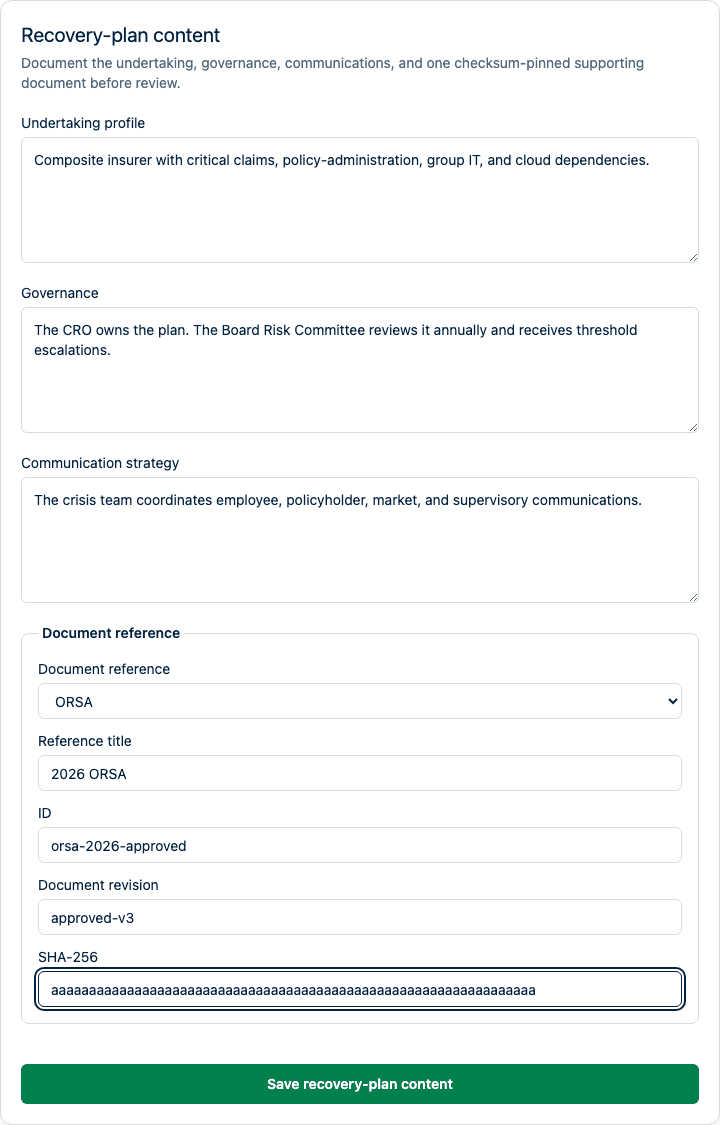
Complete Recovery-plan content. Describe the undertaking and relevant group context, critical functions and dependencies, plan ownership and escalation, and internal, external, and supervisory communications. Bind one supporting ORSA or liquidity-plan reference to its exact document identifier, revision, and selected Evidence document. Saving this content creates a new plan revision; incomplete content can remain in draft but cannot cross review.
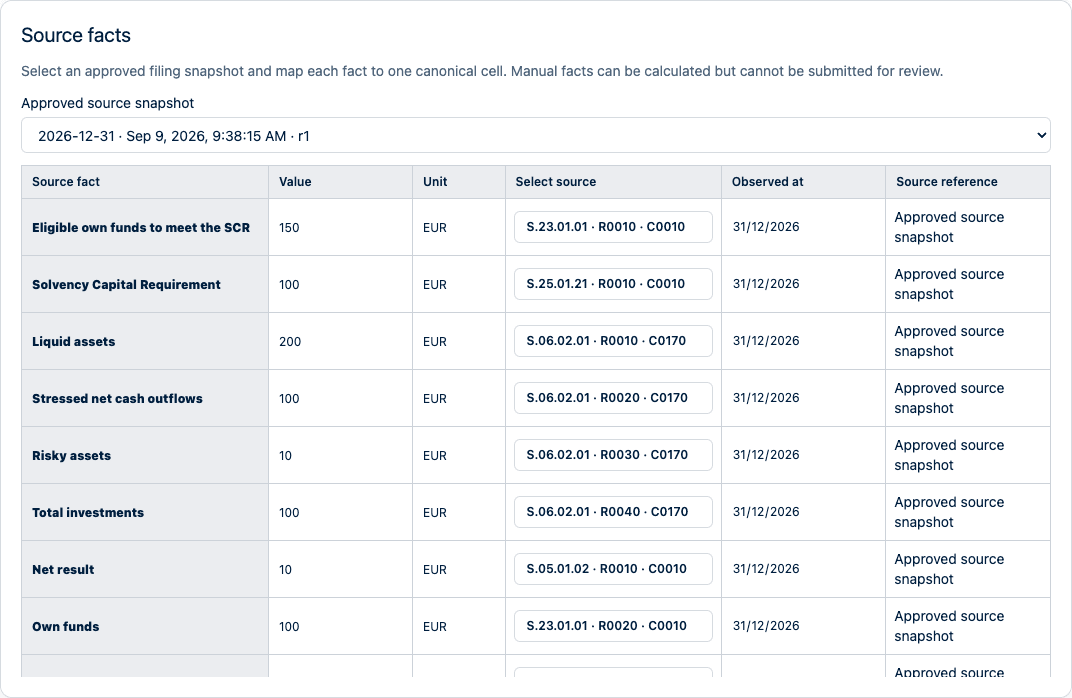
Select an approved filing snapshot, identified by its reporting period, approval time, and revision. Choose Select source beside each fact, search the approved values by their table, row or column labels, and click the matching value. If the pinned taxonomy has no label, reporting codes and values are shown instead. Results are paged in groups of 50. You never enter internal cell identifiers or snapshot IDs. Approved values and observation dates come from the selected source and are protected from manual editing; select the unit explicitly. Group plans offer only cells present in every member's approved snapshot and show each member's value before calculation applies the configured FX rates. If source loading fails, retry; existing selections remain intact. Workbook imports show their source location read-only and keep technical provenance automatically. Manual preparation allows values, units, observation dates, and human-readable references, but does not qualify for formal review. Grid editing, copy, paste, and Delete apply only to writable fields.
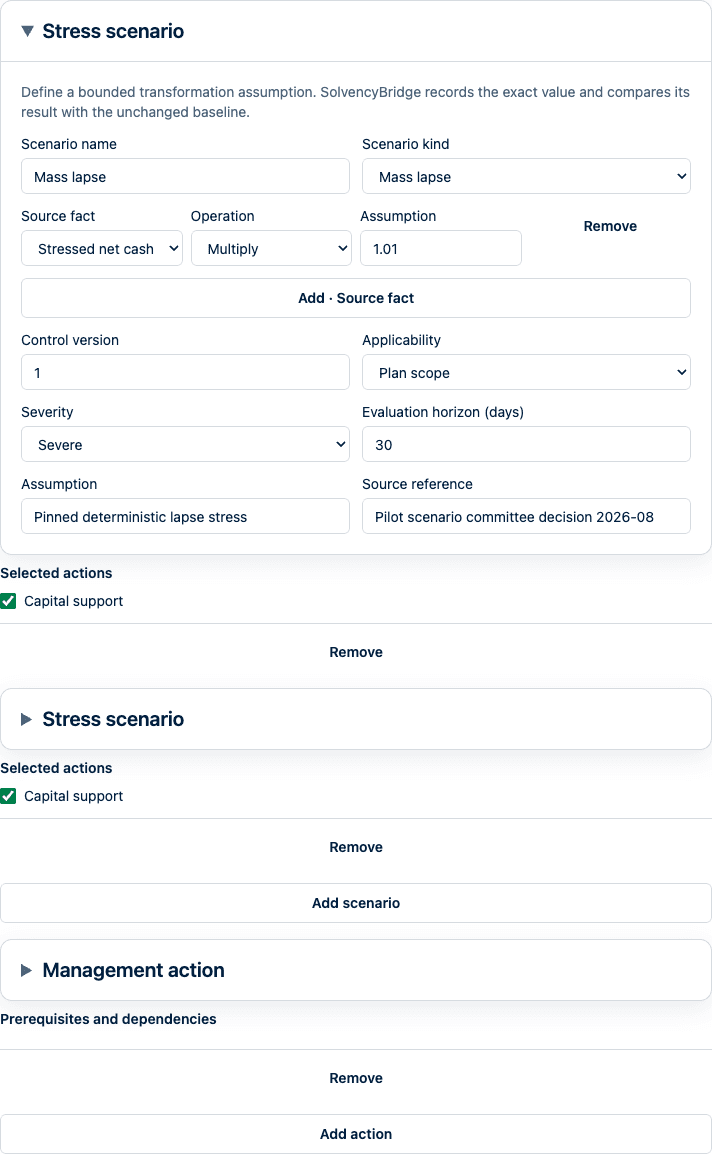
Expand Stress scenario, Management action, and Indicators and thresholds only when working on that decision context. All fields remain part of the same explicit save-and-calculate boundary.
Enter the warning and breach threshold approved for each indicator in the threshold grid. It uses the same selection and editing behavior as the source-fact grid.
Select Save and calculate, then wait for the updated results.
Review every result. Expand Calculation trace to inspect the formula, exact source facts, source checksums, scenario transformations, and confirmed management actions used by the engine.
Monitor health and schedule reviews
Open IRRD monitoring to inspect each active approved plan's latest evaluation and failed notification count. Awaiting evaluation means there is no completed evaluation for the current source. Stale source data means its observation dates exceed the plan's freshness limit. Evaluation needs attention means evaluation failed, is incomplete, or its source could not be read. Open the plan to inspect its source bindings; notification failures remain visible separately from calculation health. These states describe product processing, not regulatory acceptance.
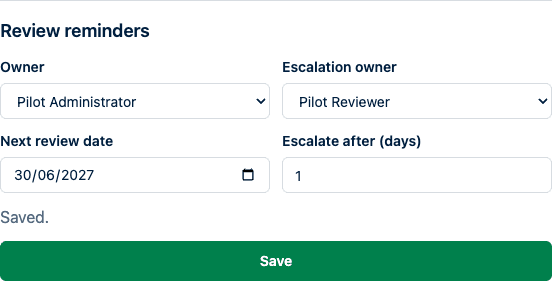
In Review readiness, a preparer or administrator can set Review reminders: choose an owner, a different escalation owner from the same organization, the next review date, and an escalation interval of 1–90 days. Review dates become due at 00:00 UTC. In-app reminders appear on the next hourly monitoring check; an overdue review or unacknowledged trigger is escalated after the configured interval. Repeated checks do not duplicate a reminder. No email or external task is sent by this reminder workflow.
After completing a review, save its next agreed date. Saving new settings replaces previous reminders; acknowledging a trigger removes its outstanding reminder. Owner settings are separate from the immutable approved evidence.
Renew an approved plan
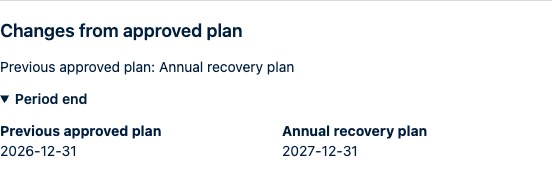
In the approved plan's Review readiness section, enter a later Period end and select Create renewal draft. The draft copies the approved plan's content, scope, indicators, scenarios, and actions, and links to that exact approved version. Repeated requests open the same renewal. Changes from approved plan identifies changed sections and displays key values alongside the previous plan.
Refresh the period-specific sources and assumptions, calculate again, and obtain independent approval. Creating a renewal does not modify the approved evidence or stop monitoring the original plan. Once the renewal is approved, monitoring moves to it; unresolved triggers on the original plan retain their reminders. Configure the renewal's review owners and date separately.
Compare scenarios and management actions
Use Add scenario and Add action to create multiple definitions. Each can contain multiple source-fact effects. Select the actions to apply within each scenario and set action prerequisites and dependencies using the checkboxes. Dependencies must also be selected for the scenario; cycles or missing references must be corrected before calculation. Remove a row to remove that definition from the draft. All rows and selections share Save and calculate.
Each scenario records its family, version, applicability, severity, evaluation horizon, assumptions, provenance, transformations, and package checksum. Combined scenarios remain explicit packages; installing a later package does not alter an approved plan.
For each scenario, calculate the baseline, the scenario before actions, and the scenario after explicitly selected actions. The matrix retains values, deltas, trigger states, completeness, warnings, traces, action order, unavailable actions, and checksums. Repeating the same pinned inputs produces the same matrix.
Before selecting a management action, record its owner, execution window, realization lag, prerequisites, dependencies, mutual exclusions, resource claims, legal and operational limitations, feasibility rationale, and evidence. The preparer must explicitly confirm the deterministic effect. SolvencyBridge records the signed-in user and time and generates the confirmation checksum; preparers do not enter technical hashes. Cycles, unresolved prerequisites, shared-resource conflicts, repeated transformations without sequencing, and effects unavailable by the selected horizon fail closed. SolvencyBridge does not forecast effects or optimize action selection.
An action contributes to the post-action result only if its effect is available within the scenario horizon and all its prerequisites and dependencies are also available. If a prerequisite is unavailable, every action that depends on it, directly or through another action, is listed as unavailable. Independent actions can still contribute. Recalculate a draft to use these checks; an existing approved evidence pack remains unchanged.
Results fail closed as Incomplete, Unsupported, or Unconfigured when required data or executable semantics are unavailable. A Warning or Breach result records the threshold outcome; it is not a recommendation to execute a recovery action.
Review and approval
Complete all recovery-plan content sections and resolve every incomplete, unsupported, or unconfigured calculation. Warning and breach trigger states remain visible for human review; they do not by themselves assert that a management action should be executed.
Add an optional review comment and select Submit for review. This pins the exact plan revision and calculation checksum; subsequent draft editing cannot silently replace it.
An independent reviewer or administrator inspects the inputs, thresholds, results, and traces. The plan creator and submitter cannot approve it.
Select Approve and lock, or add a required comment and select Return for correction. Submission, return, and approval events remain visible in the review history with their actor, time, revision, and checksum.
Download the evidence pack from the approved plan. It contains the plan, regulatory source manifest, scope and proportionality snapshots, calculation request and result, scenario matrix, action feasibility and ordering, approval history, trigger-history capture, source and definition checksums, traces, and explicit limitations. Its own checksum detects later modification. The downloaded pack is the exact evidence approved with the locked plan; it is not rebuilt from later draft changes. Previously approved version-1 packs remain verifiable byte for byte.
Monitor and resolve triggers
Only active approved plan snapshots can generate operational triggers. New approved source data is evaluated against the active approved plan. Draft calculations never create live events.
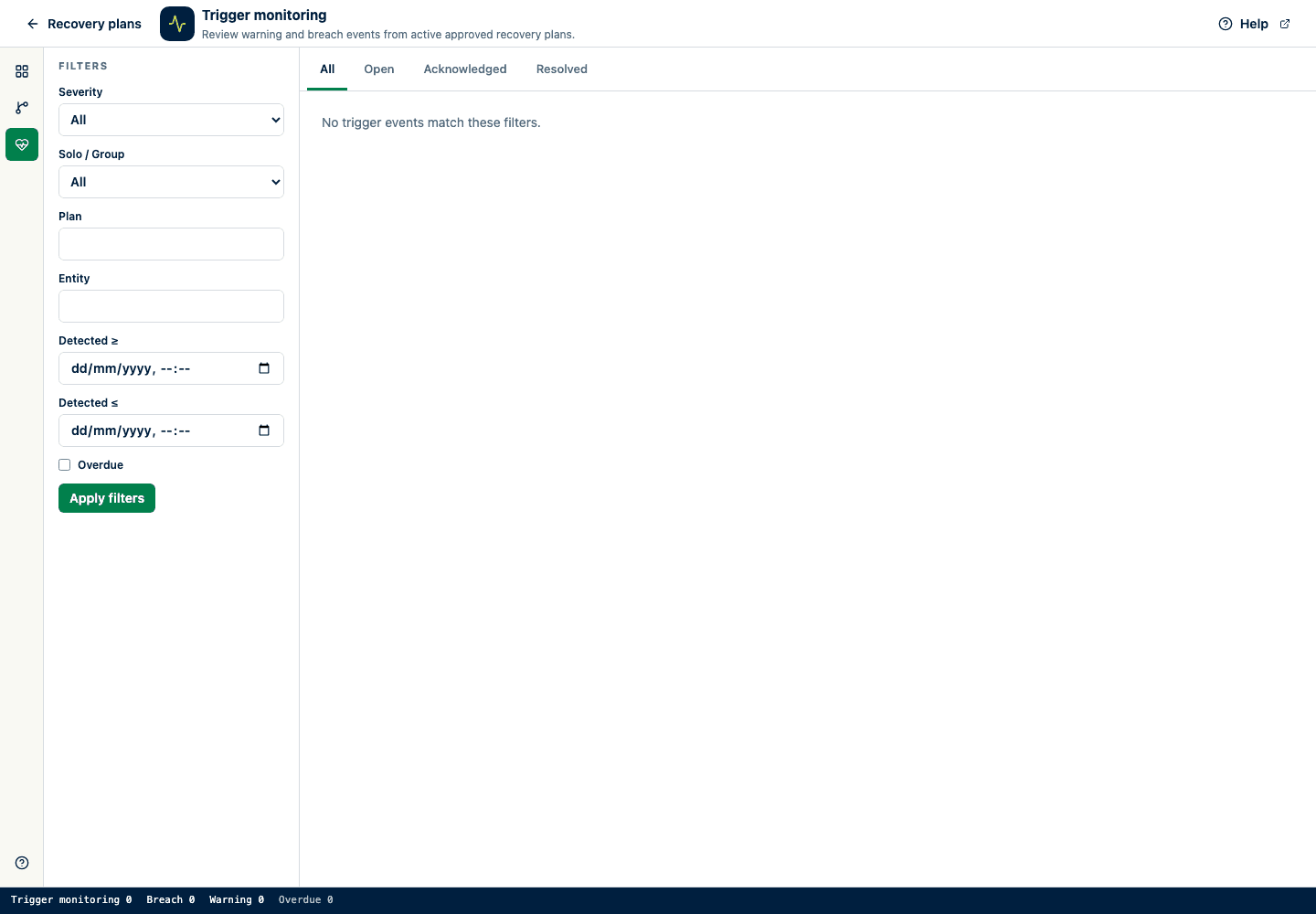
Open Trigger monitoring to filter warning and breach events. The status filter — open, acknowledged, resolved — sits in the tabs above the queue, and severity, scope, plan, entity, overdue state, and detection time are filters in the explorer. Each event lists its indicator, plan, severity, detection time, and acknowledgement deadline, and breaches and warnings carry a marker on the row. The detail workspace keeps the event status, detection time, deadline, and pinned source in the explorer. It shows the calculation trace and later evaluation link in the work area, with the commented reviewer action beside the evidence on open and acknowledged events. Existing acknowledgement and resolution comments remain visible with the evidence.
Warnings are due for acknowledgement within 24 hours and breaches within 4 hours unless an approved organization policy says otherwise. A reviewer or administrator must add a comment to acknowledge an open event, then add a second comment to resolve the acknowledged event. A later normal evaluation does not silently close the event. In-app notification is always recorded; configured webhook delivery retries independently and cannot change trigger state.
If notification preparation is interrupted after a trigger is recorded, a retry uses that same trigger and preserves its original detection time and acknowledgement deadline. Monitoring continues across all enabled approved plans, including portfolios with more than 500 plans.
Limitations
The current product uses the EU baseline and does not claim national IRRD transposition coverage.
Controlled transformations do not replace actuarial, liability, claims, asset, capital, or internal-model projections.
Approved snapshot binding proves retained content identity and lineage, not source accuracy or the suitability of a value for a recovery-plan purpose.
A checksum-pinned document reference proves which external document revision was cited. SolvencyBridge does not infer or validate that document's content.
An approved evidence pack records the insurer's SolvencyBridge workflow. It is not an authority submission, receipt, regulatory approval, or acceptance.
The controlled pilot implements the EU baseline. National overlays are a versioned extension point but no national rule package ships in this release.