Administration
Add users and configure access
Assign organization roles and optional table-level edit or review allowlists.
Who can perform the task
Organization administrators.
Before you begin
Decide the least-privilege role and whether edit or review access should later be restricted to specific table codes. Confirm the invitee's individual work email through an approved channel. Check the organization billing plan has an available user seat. Each unexpired pending invitation reserves one seat.
Quick path
- Open the organization access settings.
- Invite the user with the least-privilege organization role they need.
- Add table-level restrictions when their work must be narrower than the role.
- Send the invitation and verify the intended email and expiry.
- After acceptance, confirm the user can see only the authorized organization, filings, and tables.
Detailed guidance
- Open any filing in the organization and expand Review and audit.
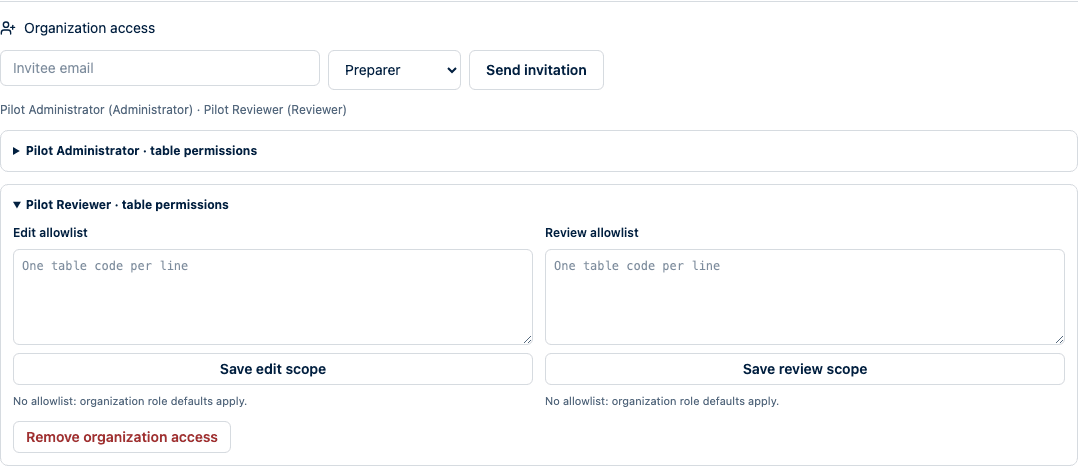
- Enter the invitee email, choose a role, and select Send invitation.
- Confirm the invitation appears under Pending invitations with its seven-day expiry. Revoke it immediately if the email or role is wrong.
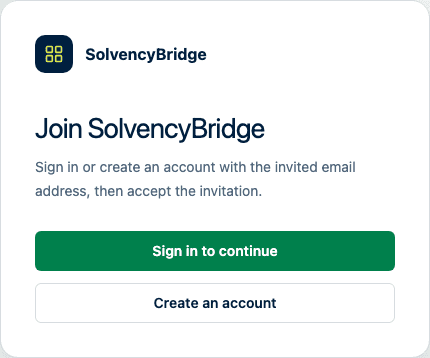
- The invitee opens the single-use link, signs in or creates an account with the invited email address, and selects Accept invitation.
- For a preparer or reviewer, optionally configure table-level edit or review access after acceptance.
- Ask the user to verify access in a separate session.
- When a person leaves the team, expand their table permissions, select Remove organization access, and confirm. Their organization access ends immediately. Your own access and the final administrator cannot be removed through this control.
Expected result
After acceptance, the member appears with the intended role. The invitation can be accepted only once and disappears from the pending list. An empty allowlist means organization-role defaults apply; a populated allowlist restricts the capability to the listed tables.
How to verify
Use a separate account session. Confirm the user can open the organization, can perform only intended actions, and cannot edit or review an out-of-scope table.
Common problems
- If delivery fails, verify the documented SMTP settings and resend. A failed delivery leaves no usable invitation.
- If the link is expired, revoked, or already used, send a new invitation.
- An invitee signed in with a different email cannot accept the invitation.
- If the user allowance is exhausted, revoke an unnecessary pending invitation, remove access for a person who has left, or move to a plan with a larger allowance. An invitation used only to change an existing member's role does not consume another seat.
- A reviewer with incomplete review access cannot approve the complete filing.
- Selecting a role alone does not satisfy your organization’s separation-of-duties policy.
Audit and security consequences
Issuing, replacement, revocation, expiry, and acceptance are recorded as invitation events. The raw token is not stored. Membership grants access to organization data, so remove access promptly when responsibilities change. Never create shared accounts; attribution depends on individual sign-in.
Product limitations
The current product does not send role-change emails. Invitations require the operator's configured SMTP delivery and remain valid for seven days unless accepted, replaced, or revoked. Core includes five user seats and Group includes fifteen. Private Cloud uses the user allowance recorded for the annual contract.