Prepare a filing
Create and manage reusable import mappings
Design, test, approve, and activate deterministic mappings for CSV, Excel, and ODS sources.
Who can use the editor
Preparers and administrators can edit and test a draft. Reviewers and administrators can approve a submitted revision, request changes, and activate an approved revision. Read-only members can inspect revisions. A field marked Confirmed is an editing aid; it is not an approval or proof that a filing is ready.
Before you begin
Have a representative CSV, .xlsx, or .ods file and a filing with the right taxonomy. Check its sheet boundaries, headers, period, currency, and sample values. You can use synthetic or approved non-production data for an initial test. The browser does not keep the uploaded file across a reload, so you may need to choose it again for analysis or another test. A successful recorded test remains available for submission if the draft has not changed.
Quick path
- Open Mappings and create a mapping. Choose the filing in the editor header. An empty draft starts at Source.
- Choose a file and select Analyse file. If the workbook has several candidate tables, review the worksheet and layout choices. Create the proposed starter before continuing to Map fields; analysing the file alone does not create a mapping.
- In Map fields, choose a destination table and find a reporting field by name or code. Select the source column beside it. A manual choice updates the draft immediately and is saved automatically. Undo reverses an edit. Suggest matches collects exact-label proposals; inspect them and explicitly accept the pending choices. The acceptance count includes proposals outside the current search.
- Open Review. This is a filtered view of the same mapping table, with the same editors and sample preview. Check unmapped, invalid, and needs-review fields; inspect unused source columns. Confirm a field when its rule and destination look right. You can return to Map fields at any time.
- Open Test and submit. Choose a source file beside Test if it is no longer selected, run the test, and resolve any issues. A clean test records evidence for the saved draft. Submit that exact revision for approval. The applicable approval and activation actions appear here for authorized reviewers.
The numbered stages remain available while you work. Editing a field does not change the selected stage. In Map fields and Review, the mapping table is the default view; Advanced tools below the stages reveals Graph and JSON views when you need them. The side inspector and bottom panels start closed. Open the issues panel from a validation blocker or use the status-bar controls.
Source analysis and samples
Analysis reads the selected file and proposes source tables without importing its values into the filing. Business column names do not need to match the standard import headers at this stage. Review the detected source, map its fields, and run Test before submitting the mapping. Unreadable files and source-layout issues still need correction; successful analysis is not a successful import test. The worksheet and layout choices are part of the source stage. A sample result in the field editor needs an analysed source in the current browser session. After reloading, select the file again and run Analyse file to restore those samples. This does not erase retained test evidence.
The filing selector in the header applies to analysis, destination suggestions, and testing. If the mapping was opened from a filing, that filing is selected. Otherwise a valid saved-test filing is preferred; when several filings are available and neither applies, choose one. The editor keeps the source file in browser memory only.
Mapping and review
A field connects a source column to a destination cell through a rule. Open its row to edit the value rule, destination, and sample preview. You can use a source value, a fixed value, a calculation, a lookup, or the other supported rules shown in the editor. Sample calculations update as you edit, but only a full test checks the entire file. A source column that is not used by any field appears in source review; decide whether to map or ignore it.
The mapping table and Graph edit the same fields. Destination cards in Graph list each field and its source value or rule. Select a field on the card to open that exact field in the mapping table; its Graph action returns to the owning destination step. Switching views keeps the selected field and pipeline. The Map fields destination catalog follows the selected pipeline; the mapping table also lists rules whose destinations come from source values, even when they cannot be matched to one fixed catalog cell.
A newly added Source step has no worksheet or columns until you configure it. Select Start from source file, analyse your file, and use the detected table in that Source step. New steps no longer invent Cell and Amount columns. Existing drafts retain their saved source settings; use Use this table to replace old placeholder settings with the real columns.
In Graph, select the Source step to see its current worksheet and columns. After you analyse an example file, choose a detected table to inspect its first rows, then select Use this table to update that source step. Existing field rules stay in place, so review any missing columns and run a full test after changing the source. Advanced tools contains manual worksheet details for unusual layouts. Its Header row and First data row are worksheet row numbers: the row containing column names and the first row containing values. They are not cell coordinates.
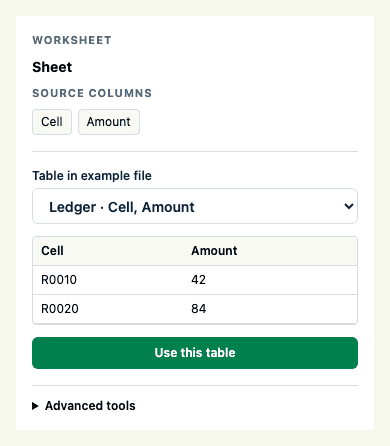
Illustrative source preview with synthetic data.
Select Shape in Graph to decide how that worksheet becomes records before field rules are applied. Normalized rows keeps each worksheet row as one record when the row already has all the values to map. Rows as records also reads one record per row, using a chosen column to identify that record. Columns as records uses a chosen column for field names and treats each remaining value column as a record. Shape changes how the mapping reads the worksheet; it does not edit the uploaded file. When analysis finds a reliable layout in the selected example, the inspector shows sample rows and offers Use detected layout. Review the suggested layout and identifying column before applying it, then run a full test.
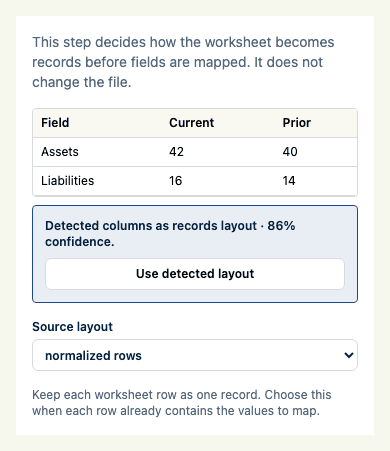
Illustrative shape preview with synthetic data.
Select Control in Graph to check the number of mapped records before import. A mapped output contributes one record, so one worksheet row can contribute several; the count covers every source path in the mapping. Set an Expected count and, if a small difference is acceptable, an Allowed difference. Count fields group thousands for readability and continue to accept whole, non-negative counts. Worksheet row positions remain literal row numbers. A check passes when the mapped count is within that difference of the expected count. Stop import when this check fails makes failure a blocker; an unchecked check is still reported but does not block import. Give each check a meaningful name. Remove checks that are no longer needed; removing the last check removes the Control step. Required count checks with incompatible ranges cannot all pass, and the editor warns when it detects that conflict. A new Control step starts with an optional zero-count check: set the expected total before enabling the blocker. Run a full test with the selected file to see the actual count and any blockers.
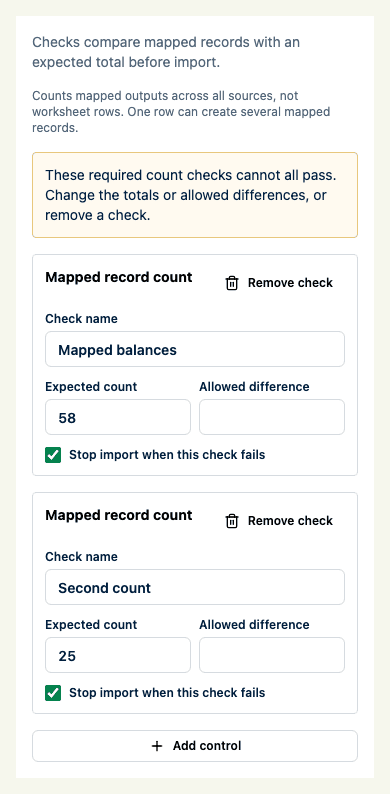
Illustrative control settings with synthetic counts.
Manual field matches save through the normal draft autosave and support Undo. Bulk and AI proposals remain pending until you accept them. Pending proposals stay available while you search or visit another stage in this browser session. The editor checks them against the current source columns and mapping before acceptance and identifies choices that need another look. A search can hide a proposal from the current list, so check the pending count before accepting. Suggest matches fills only fields without a pending choice; it preserves existing choices and fields you have already mapped manually.
Suggestions do not establish the business meaning of a source column or prove that a destination is correct. Review the rule, context, and resulting values before confirming a field and testing the mapping.
Some destinations require context dimensions. You can choose one in the destination-led table like any other field; selecting its source column creates the field and opens its context controls. Map context also fills in the dimension codes supplied by the selected destination. For each dimension, choose a labelled source column or enter a fixed value. The destination context is shared by all fields in that destination group. If source columns are unavailable, return to Source and select a file. The current editor retains the engine's supported z-axis setting; it does not offer a taxonomy member picker. Check the resulting context in a full test.
Test, submit, and recover
Test is unavailable while the draft is saving, a save failed, a validation issue remains, an action is running, or a filing or source file is missing. The test stage shows the reason and a nearby recovery action. Show validation issues opens the issues panel. A field link appears only when the issue identifies a field still present in the mapping. Structural problems stay at mapping level. Validation can report several independent issues at once; correct them and let the draft save before testing again.
A failed test shows source, mapping, or control diagnostics and preserves the selected file so you can correct the issue and retry. A successful test records its time and evidence with the draft. The editor can submit a valid saved test after a reload without re-uploading, provided the mapping has not changed. If an edit changes the tested graph, test again. Submitting, approving, requesting changes, and activating still follow the existing permission and revision checks. Requesting changes asks the reviewer for a reason in the editor.
If a save fails, use Save again without leaving the page. Navigation waits for queued edits to save; a stale revision or a conflicting edit must be resolved before proceeding. Undo and Redo affect the local draft graph, so wait for All changes saved before starting a test.
If another session has saved a newer edit, use Download JSON to keep a copy of your current mapping, then Reload latest. Reloading discards unsaved changes and loads the latest saved version; it does not merge your edits. After reloading, compare the downloaded copy with the latest version, then open Advanced JSON and apply the copy to the draft if you still want your version.
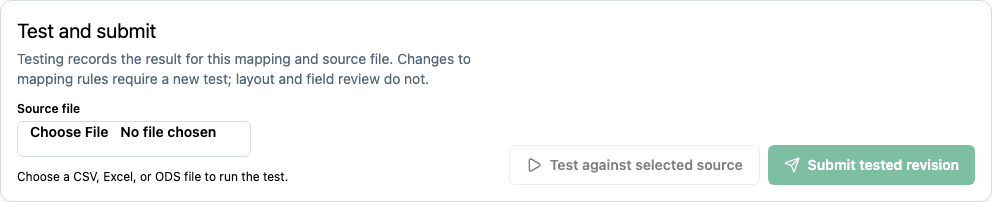
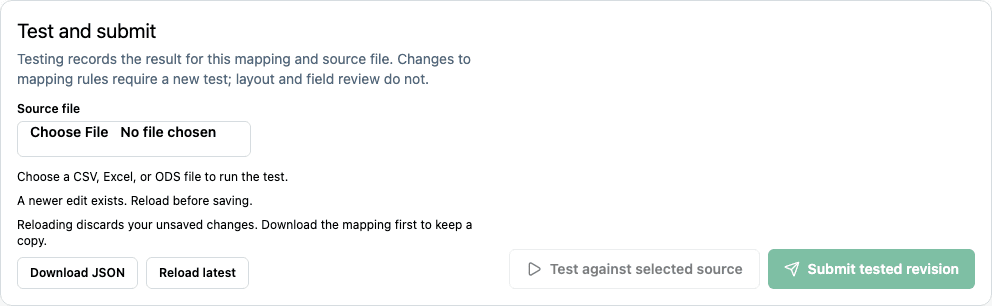
Illustrative test and conflict controls with sample data. These images do not represent a tested or approved filing.
Start from filing import
The filing import panel remains another way to review source suggestions. Its inline review and Save reviewed mapping action still work. After saving, select Open mapping to inspect the exact mapping, filing, and revision that were saved. The import preview and approval flow remain separate. If you want to change that saved revision, create an explicit draft in the mapping editor; opening a revision does not edit it in place. If the source file is no longer in browser memory, select it again for analysis or testing.
Older imported mappings can have Revision 0. They open as read-only revisions and can be used to create a governed draft. A new mapping with no saved content has no active revision.
Advanced tools
An unassigned destination is a field that still needs a reporting cell. Return to Map fields, choose its destination and review its context before testing. Sample values help inspect a rule but do not replace a full-file test.
In Graph, use Arrange steps to organize connected steps for inspection. Collapse confirmed pipelines hides confirmed paths while you work on the remaining ones; use the corresponding expand control to show a hidden path again. Collapsing a pipeline does not remove it from the mapping or approve the revision.
Graph is for inspecting or building connected source, filter, shape, destination, and control steps. JSON is for advanced inspection and editing of the mapping document. AI settings and layout review are optional tools; accept any generated change explicitly and run a full test afterward. Context dimensions, fixed values, and complex destinations deserve particular care because a sample preview cannot establish complete filing correctness.
When you drag a connection from a step’s dot, the compatible destination dots grow and turn green. Release on one of those dots to connect the steps. The same guidance works when starting from an input dot and dragging backward. If no dot highlights, that step has no available connection under the current pipeline rules. A step can have only one outgoing connection and one incoming connection, and the step types must be in a supported order. The banner above the canvas announces whether a compatible dot is available.
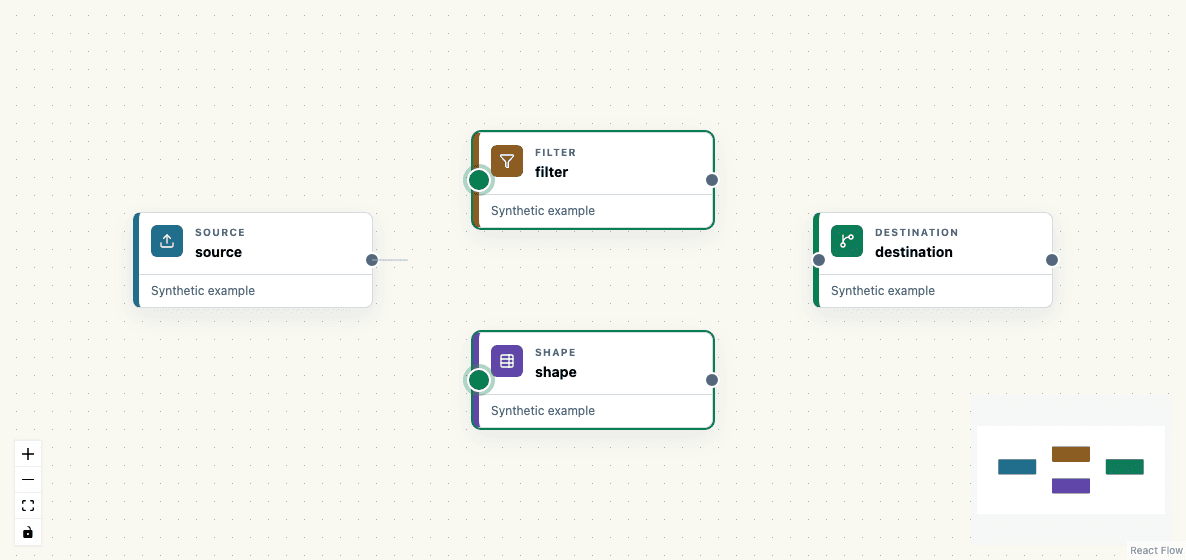
Illustrative connection preview with synthetic steps.
Use the same source with different filters
In Map fields, open Advanced tools and choose Graph. Create a separate Source → Filter → Shape → Destination path for each set of rules. In each Source step, use the same detected table and the same header and data row range. Configure each Filter independently, then set that path's layout and destination fields. For example, one path can select Category = life and another Category = non-life from the same worksheet. Each path applies only its own filter and output rules.
You do not need to copy the worksheet or change its row numbers to reuse it. Keep each Source step connected to its own path; a single step still has only one outgoing connection. Run Test after configuring both paths. If overlapping filters produce the same destination cell more than once, the test reports a conflict and blocks import, even when the values match. Adjust the filters or destinations before proceeding through review and approval.
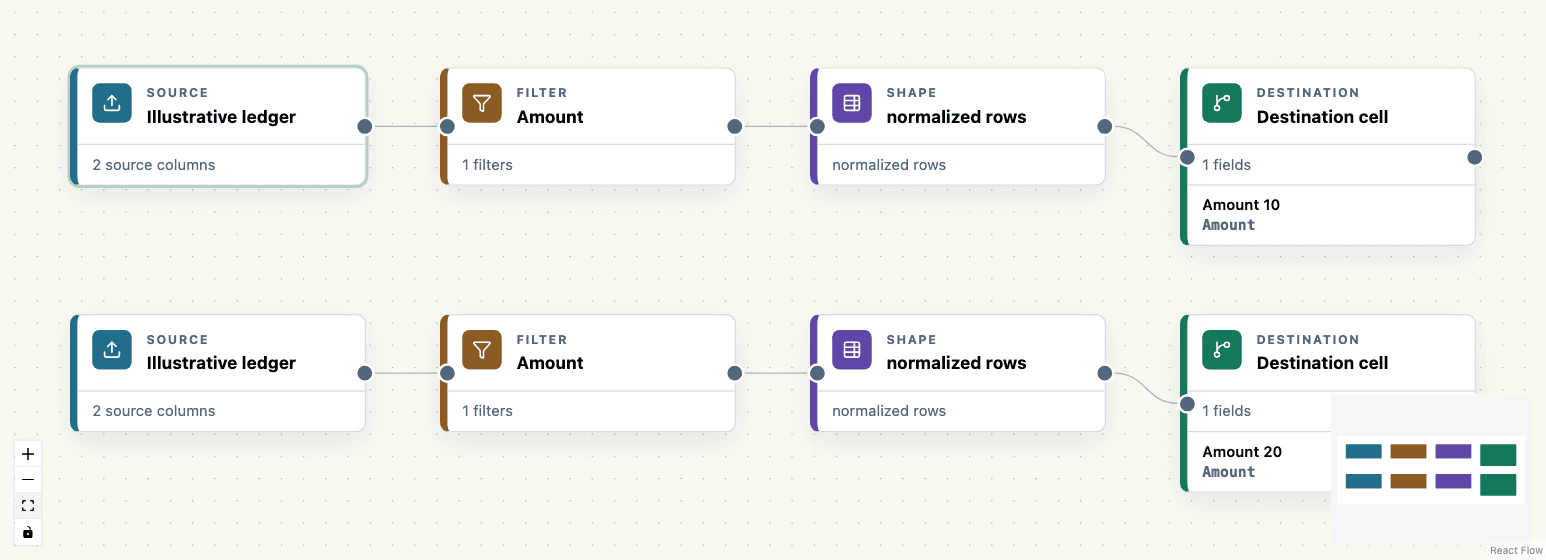
Illustrative graph with synthetic data and two separate amount filters.
Data consequences and limits
Analysis and testing do not import source values into the filing. Activation makes the approved mapping revision available for later use; it does not change prior filing values. Supported tabular source formats are CSV, Excel .xlsx, and ODS. Re-selecting a source after a reload does not recreate overwritten or cleared historic test evidence.