Validation
Understand and resolve validation findings
Work from grouped root causes, inspect exact evidence, preview safe corrections, and verify the full filing result.
Who can perform the task
Preparers and administrators correct findings while the filing is editable. Reviewers inspect findings and supporting explanations.
Before you begin
Confirm the filing identity, applicability, taxonomy version, reporting currency, units, and source data. Read the disclosed validation coverage for the installed taxonomy and jurisdiction.
Retained EIOPA validation uses the filing's reporting module, the official row and column scopes, and the dimensions of the reported facts. A rule explicitly deactivated for that module does not become a finding. Optional-field defaults apply only where the retained rule defines them; malformed values and genuine missing dependencies still require investigation. For a rule evaluated across several scopes or assets, the diagnostic shows an actual failing instance.
Quick path
- Open Validation and group findings by their likely root cause.
- Inspect the exact cells, rows, dimensions, rule evidence, and related findings.
- Correct the source or filing value, or preview an explicitly supported safe correction.
- Rerun full validation rather than checking only the edited item.
- Document any approved disposition and confirm the filing’s remaining blocker count.
Detailed guidance
- Open the filing. The selected reporting table remains the central workspace. Use the activity rail to move between filings, templates, and a compact issue list; use the bottom status bar when you need the detailed findings.
- Select Validation issues in the status bar to open the Problems panel. Notices about an older displayed validation identity or incomplete local rule coverage appear in this panel instead of taking space above the reporting grid. A complete local catalog with no unsupported rules does not show a coverage warning. When a deterministic value is available, select the suggestion icon in the compact metadata row beneath the affected value. This opens the same panel with that finding and its exact proposal expanded. The icon does not change the cell value. A cell with several equivalent findings shows one concise message and a count instead of repeating the same diagnostic. Select that summary to review the deduplicated explanations, then select Official finding to open that exact issue in Problems. The panel scrolls to the finding without moving the reporting workspace.
- Work from the first group. Findings appear first in the panel, in groups ordered by blocking severity and the number of downstream findings they are likely to resolve. Each group heading shows the root cause, template, source, severity, and whether it blocks approval. Each finding row shows its row and column codes and an Open affected cell action, so you can jump to the cell without expanding the finding. On phones, this closes the Problems panel so the selected cell is visible. Early data-quality preflight, Validation rule controls, and Operational metrics follow the findings as expandable rows.
- Expand a finding and read:
- the plain-language explanation of what is wrong and the suggested next action;
- the concrete condition that failed, written with template, row, and column references and familiar operators such as
=,+,−,∧, and⇒; - the official rule ID;
- the official finding and expected relationship;
- the current value;
- source or imported-value lineage;
- related values and dependencies; and
- under Exact evidence, the exact cell evidence, dimensions, unit, period, and taxonomy. When the evaluator provides numeric operands, the finding also shows the reported value, expected value, and difference before the technical trace, together with the contributing cells. If a rule cannot be explained completely, the product keeps that limitation visible and preserves the original regulator diagnostic. For an EIOPA formula, Why this rule failed lists the exact facts used by the evaluator and identifies the active branch of a conditional rule. The dependency list follows those evaluated facts rather than showing cells from inactive branches that merely appear in the full formula. Workspace guidance, evidence labels, correction controls, source types, units, and root-cause categories follow the selected interface language. The official finding itself remains exactly as supplied by the authority or taxonomy source. Read a formula from the outside in. For example,
A = (B + C)means that the value at A must equal the sum of B and C, whilecondition ⇒ requirementmeans the requirement applies when the condition on the left is true. A format finding states both the affected cell and the required format. These explanations are diagnostic guidance; the official finding remains the source evidence when escalating a rule. Other notation is explained beside the finding:∅is an unreported value,Σis a sum,#counts reported values,MIN/MAXselect an extreme,~applies a required pattern, andLEI✓/ISIN✓verifies a checksum.FI+andFI−distinguish an included template from a negative filing indicator.A ? B : Cselects B when A is true and C otherwise;LOCAL_CODE,SLICE, andUNITidentify the exact text or unit operation. Selector filters appear inside⟦...⟧. If the readable preview is shortened, expand Full condition to inspect the complete normalized expression; no logical filter or term is discarded from that expanded view. For a failed executable rule, Why this rule failed shows the evaluated result. Expand Evaluated values and calculation to inspect the exact selected fact IDs and contexts, each operator or function, its inputs and result, the active conditional branch, aggregate components, numerical difference, and tolerance where applicable.∅identifies a missing operand. A shortened-trace notice means that the bounded diagnostic shows only the first relevant facts or steps; the rule result itself was still evaluated normally.
- Select Open affected cell or Open source lineage where available. Opening an affected cell selects the relevant template and moves keyboard focus to the field while the Problems panel remains available for the next finding.
- Correct the root source, applicability, context, or value rather than masking a downstream symptom.
- If a Mechanical correction preview is offered, inspect the exact before and after value and the local fixed, remaining, and introduced findings. A match proposal copies the rule's designated source into its target. A sum proposal fills the designated total only when every source value is present and numeric.
- Select Preview full validation change. This runs the proposed correction against the complete filing without saving it.
- Compare fixed, new, recurring, and changed findings and the before/after error and warning counts. Comparison headings, incomplete-retention guidance, empty states, and overflow counts follow the active interface language. Validation boundaries, run timestamps, and finding IDs remain exact so reviewers can match the comparison to retained audit evidence.
- Select Confirm exact correction only when the full preview says it is safe. If confirmation is disabled, resolve the new or unsafe result manually.
- A rule whose required input belongs to an unfilled or non-applicable table is shown as not evaluated, with the missing cells and tables. It keeps the rule's original error or warning severity: an unevaluated error remains blocking, while an unevaluated warning remains advisory. The product does not silently change applicability or pretend that the rule passed.
- When a rule genuinely should not govern the filing, open Validation rule controls. A preparer or administrator can request a waiver for the exact current filing revision; the assigned reviewer must approve it. An administrator can disable a rule for every editable filing on the same pinned taxonomy release and can re-enable it later. A reason and evidence reference are required when weakening a rule. Disabled and approved-waiver rules remain visible in validation and export readiness instead of being counted as passed findings.
- When no mechanical correction is offered, use professional judgment and supporting source evidence.
- Re-run or refresh validation and check dependent findings. A newly created or changed filing can show Validation pending while the background result is being prepared; continue entering data while it is pending.
- Preserve supporting evidence for policy decisions or externally resolved exceptions.
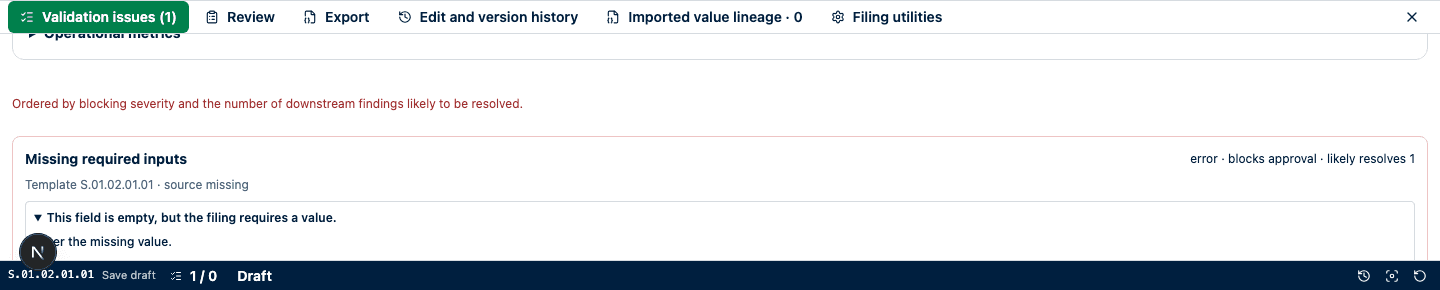
Selecting the finding moves focus to the affected reporting field.
Expected result
Corrected root causes remove or predictably change their dependent findings, without introducing an unsafe full-filing result. The filing remains reconciled to its source and every remaining finding is understood.
How to verify
Review the complete summary, not only the changed cell. Compare the full preview with the post-save validation result, including finding identities and error/warning counts. Inspect source lineage and audit history.
Common problems
- The short message is practical guidance, while Official finding preserves the authority or taxonomy wording. Use both when the rule detail is more specific than the suggested next action.
- If a formula contains several cells, compare their displayed values, units, periods, signs, and dimensions before editing. A mathematically equal number can still fail when its reporting context differs.
- If the concise condition does not reveal the mismatch, expand the evaluated values and calculation. Start with the final
falsestep, compare its input values and difference or tolerance, then work backward to the selected facts. - One incorrect sign, unit, period, or open-row dimension can trigger several findings.
- A calculated value must be corrected through its inputs.
- No suggestion is offered when the relationship has incomplete inputs, several possible targets, or would write to a calculated cell.
- “No findings” may still coexist with unsupported or out-of-scope rules.
- Do not use a rule control merely because a dependent table is blank. First confirm applicability and inspect the structured missing-dependency evidence.
- Filing waivers are revision-specific. Editing or reopening the filing creates a new revision that requires a new decision. Organization controls apply only to their exact taxonomy version and checksum.
- A local correction can fix one finding while introducing another; full validation preview is required before confirmation.
- No mechanical proposal means the product cannot prove a safe deterministic correction. Do not guess.
Audit and data consequences
Preview does not change the filing. Confirm exact correction does. Rule disablement, re-enablement, waiver requests, reviewer decisions, reasons, and evidence are retained as governance history. Approval snapshots pin the effective exclusions so a later organization policy change cannot rewrite the historical approval. A saved correction changes filing values and can change calculations, completion, review readiness, comparisons, and exports. Preserve the reason and source evidence for material changes.
Regulatory limitations
Implemented validation is a product control, not an authority guarantee. Unsupported rules and external portal validations remain your organization’s responsibility.