Start here
Sign in and open a filing
Access your workspace and confirm you opened the intended entity and reporting period.
Who can perform the task
Any user whose existing account is a member of an organization.
Before you begin
Obtain the application address and account credentials through your organization’s approved channel. Never use the public synthetic pilot credentials on a shared or production deployment.
If you received an organization invitation, open its newest link within seven days. Sign in with the exact invited email. If you create an account first, open the verification email within 30 minutes, verify that address, return to the invitation, and sign in before selecting Accept invitation. Invitation links are single use.
Quick path
- Open the SolvencyBridge sign-in page and use your approved account method.
- Complete any identity-provider or verification step.
- Choose the organization you intend to work in.
- Open the assigned filing from the portfolio.
- Confirm your visible role and filing identity before entering or reviewing data.
Detailed guidance
- Open the SolvencyBridge address supplied by your administrator. The public product page is at
/; the authenticated filing portfolio is at/workspace. - If needed, choose your language by name from the language selector. The selector uses a localized language name when the browser provides one and otherwise uses the language's native name. The sign-in screen and filing workspace keep the same language preference.
- Select Sign in, enter your email and password, and complete sign-in. SolvencyBridge opens
/workspaceafter authentication. - On Filings, locate the reporting entity and period.
- Check the jurisdiction/status badge and due date.
- Open the filing.
If you cannot remember the password:
- Select Forgot your password?
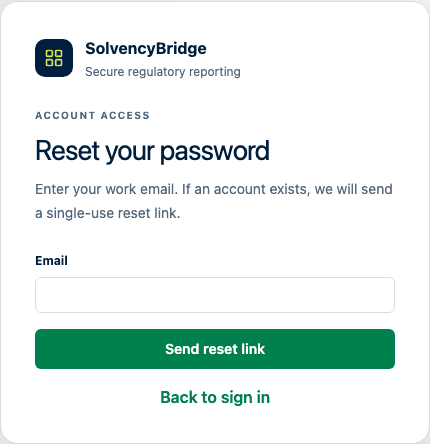
- Enter the account email and select Send reset link. The confirmation is intentionally the same whether or not an account exists.
- Open the newest SolvencyBridge reset email within 30 minutes.
- Choose a password of at least 10 characters and confirm it.
- Return to sign-in. Completing the reset confirms ownership of the account email and invalidates the account's existing sessions, so the new password can be used immediately even when the address was not previously verified.
If you create a new account, use the newest verification email within 30 minutes. Open the dedicated registration address at /register; /login is reserved for existing accounts. Completing verification signs you in and continues to the workspace or invitation you originally opened. An unverified address cannot open an authenticated session or receive platform administrator access.
Review the documents when creating an account
Read the linked Terms of Service and Privacy notice before selecting Create account. When they are drafts, the form says so. Creating an account records acknowledgement of those drafts; it does not make them effective. Confirm with your organization and the operator before uploading customer data under draft documents.
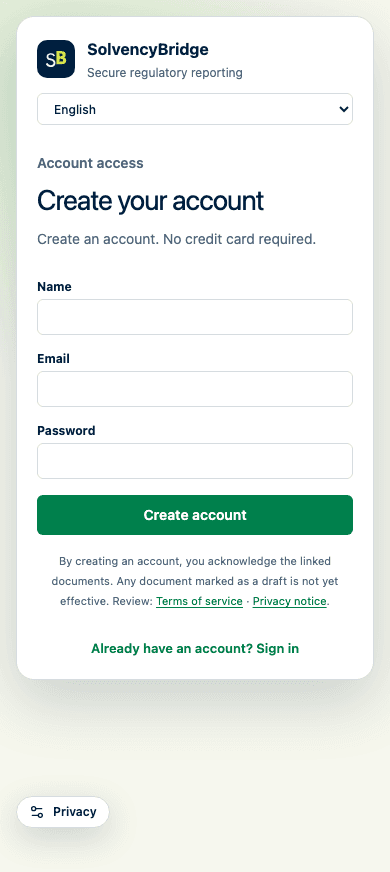
If the documents change while the form is open, account creation stops and the page refreshes their presentation. Your entries remain available. Read the current linked documents, then select Create account again.
Expected result
The filing header shows the intended entity and period. The available controls match your organization role.
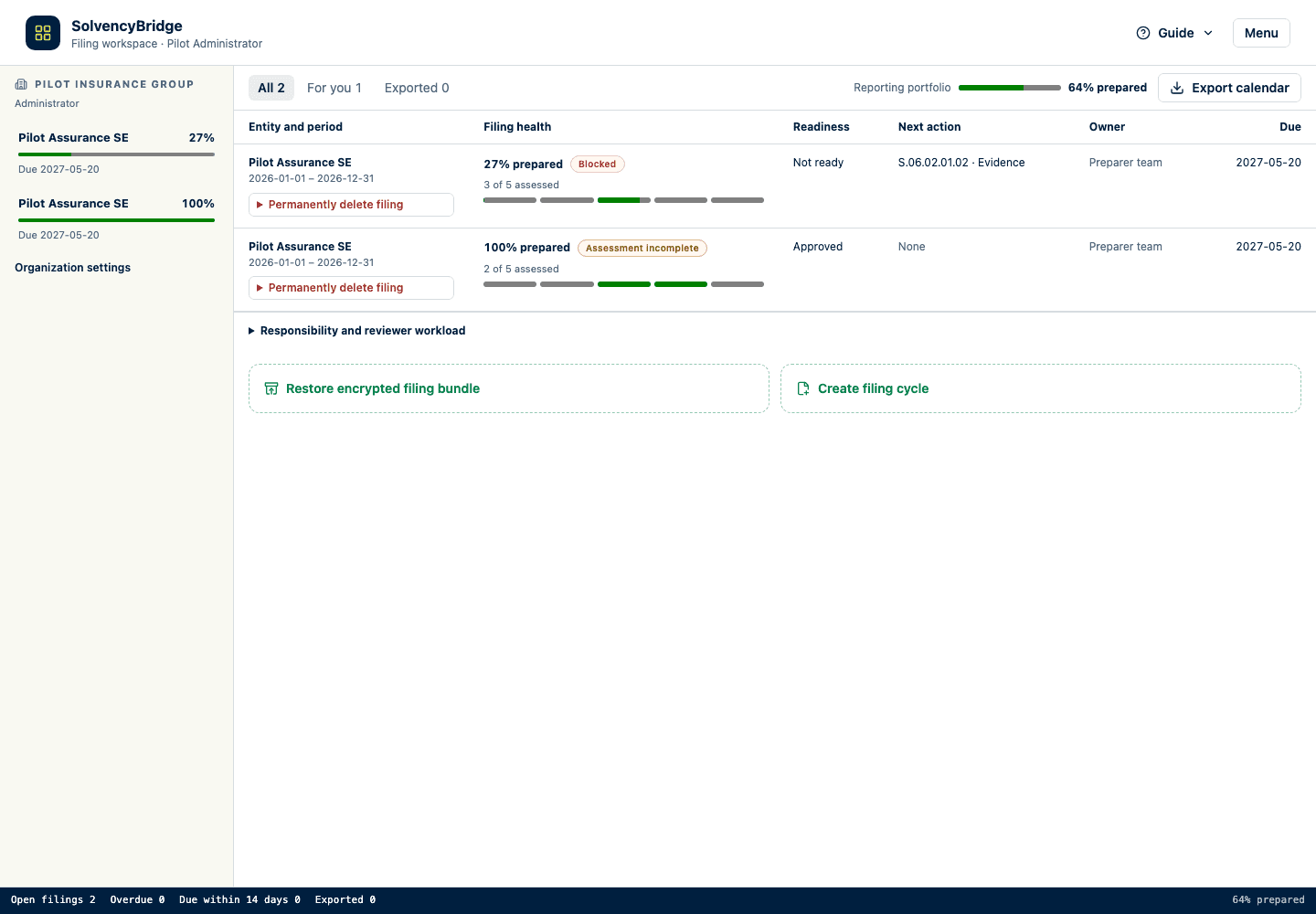
The portfolio keeps filing identity and status visible before a user opens the workspace.
How to verify
Before changing data, compare the entity identifier, reporting period, jurisdiction profile, and taxonomy version with the approved filing instruction.
Common problems
- If the account exists but no organization appears, ask an administrator to check membership.
- If a filing is missing, confirm the reporting entity and period, then ask an administrator whether the cycle was created.
- If controls are missing, check your role and table-level access.
- If a reset email does not arrive, check the approved spam or quarantine location and confirm the account email with your administrator. Requesting another link invalidates the older link.
- If a reset link is invalid or expired, request a new link. Never forward a reset email or send its link to support.
- If a verification email does not arrive, check the approved spam or quarantine location and confirm the address. Try to sign in with the email and password used at registration to send a fresh verification email. Create the account again only when your administrator confirms that no usable verification email exists.
- If a verification link is invalid or expired, sign in with the email and password used at registration to receive a new link.
Data consequences
Account creation records the submission time, the terms and privacy versions, their publication state, and the interface and document languages. This record is separate from optional analytics permission. Older accounts do not acquire a historical acceptance record merely because the feature is introduced.
Merely opening a filing does not change reporting values. Any later changes and workflow actions are attributed to the signed-in account.
Product limitations
Single sign-on is not included in the current product profile. Invitations and password reset require the operator to configure the documented SMTP delivery settings. Account creation also requires working verification-email delivery.