Prepare a filing
Preview and apply a data import
Inspect, preview, reconcile, and apply CSV, Excel, ODS, EIOPA XBRL, or supported national XBRL data safely.
Watch tutorial
Import an Excel filing template
See how to choose a completed filing template, preview its changes, and apply only a reviewed result.
About 2 min · English AI-generated narration. Captions and transcript included.
Transcript
- 00:00This tutorial uses a synthetic filing. The narration is AI-generated.
- 00:05Start in the filing workspace and open Import data. Choose the Excel template prepared for this filing and confirm that the reporting period and taxonomy shown on screen are the ones you intend to update.
- 00:18Select the workbook. SolvencyBridge reads it into a preview first; it does not change the filing yet. Check the detected sheets, mapped tables, and row counts. If a sheet is missing or mapped incorrectly, stop here and correct the workbook or mapping.
- 00:33Next, review the preflight findings. Resolve blocking errors before applying the import. Warnings need a deliberate review, but they do not automatically mean that the data is wrong.
- 00:44When the preview matches your source, select Apply import and wait for processing to finish.
- 00:50Finally, confirm the imported row count and open the affected table to verify representative values against the source workbook. Continue with validation and internal review.
- 00:58An imported filing is not approved, exported, submitted, received, or accepted by a supervisory authority. Keep following your organization’s controlled filing process.
Who can perform the task
Administrators and preparers with edit access to the affected tables. Imports are disabled when the filing is locked or under review.
Before you begin
For the simplest spreadsheet workflow, download the generated Excel template from the filing. It is bound to that filing and contains only its applicable EIOPA forms, plus any form explicitly marked as reported in the regulatory S.01.01 contents template. Resolve any disagreement between that contents template and the filing's confirmed applicability decisions before review or export.
You can also use a UTF-8 CSV, another .xlsx source, a value-only .ods workbook, a pinned EIOPA Solvency II XBRL instance, or a national XBRL instance explicitly supported by the selected profile. Legacy .xls files are not accepted; open them in a trusted spreadsheet application, review the result, and save them as .xlsx. Confirm the source entity, period, taxonomy, units, and version. Keep the original source. Production checks the file extension and signature and completes an anti-malware scan before parsing or retaining the upload. If the scanner is unavailable, the import fails without applying data; retry after the operator restores scanner health.
Belgian IRI_IND imports also accept the NBB OneGate XML envelope produced by SolvencyBridge. The envelope must identify NBB, the INS domain and IRI_IND, and its declarer must match the embedded XBRL entity. The filing entity, period and taxonomy checks still apply. This does not confirm acceptance by OneGate.
Quick path
- Download the filing template or choose another supported source file.
- Upload the source and confirm the entity, period, currency, worksheets, and mapping scope.
- Select Preview import; this must not change the filing.
- Review proposed, unchanged, rejected, conflicting, and unmapped values and reconcile totals.
- Only when the preview is correct, apply the changes and rerun validation.
Detailed guidance
- Open the filing and expand Import source data.
- To use the generated workbook, select Download Excel template:
- check the entity, reporting period, taxonomy, and EIOPA module on the instruction sheet;
- on Instructions, use Workbook contents to review each regulatory code and full form name, then select Open sheet; worksheet tabs use the exact regulatory code so Excel does not truncate the form name;
- for a fixed form, find the reporting item down the rows and the reporting column across the matrix;
- for a repeating form, enter one asset, counterparty, policy, or other record per Excel table row and add table rows when needed;
- a repeating form with no saved filing values intentionally starts with labelled columns and 25 blank input rows; this is a usable empty form, not a missing worksheet;
- enter data only in highlighted cells and use the supplied dropdowns; dropdowns show meaningful labels while the import retains the exact regulatory code;
- inspect an input cell's note for its expected format and requirement status; Depends on filing is governed by the filing's applicability, validation, and reporting guidance; and
- save the completed workbook as
.xlsx.
- Choose the completed template or another supported source file.
- Check Import source scope for the selected filename, reporting entity, period, and reporting currency. Scope and source-schema labels follow the selected interface language. The filename, entity name, dates, currency, worksheet names, source headers, and rejected-row coordinates and diagnostics remain exact.
- A generated filing template does not require a mapping. For other CSV, Excel, or ODS sources, optionally choose a saved organization mapping or upload a mapping JSON. XBRL does not use tabular mappings.
- Select Preview import.
- For an Excel or ODS workbook, review Workbook inventory before mapping:
- inspect visible and hidden sheets, populated ranges, row and column counts, formulas, merged ranges, links, rich cells, and error cells;
- choose the sheets to import;
- confirm each header row and data range; and
- explicitly ignore cover, instruction, lookup, calculation, or unrelated sheets. Inventory labels, boundary controls, and safety explanations follow the selected interface language. Worksheet names, ranges, and source coordinates remain exactly as they appear in the uploaded workbook.
- Preview again after changing workbook scope. Review parsed and rejected rows, exact workbook coordinates, proposed destination values, affected templates, and reconciliation totals. Tabular reconciliation labels, rejection categories, destination summaries, and value-state labels follow the selected interface language. Worksheet names, cell addresses, regulatory template codes, destination cell IDs, and imported values remain exact. Review Early data-quality preflight beside the preview. Its pinned, deterministic checks identify duplicate repeat keys, partial logical rows, supported field-contract mismatches, exact control-total differences, and configured prior-period movements. These are advisory review controls, not a claim of complete regulatory validation.
- Review mapping suggestions and source-schema differences when displayed. Use the sheet tabs to include or exclude each detected table, correct the record key and each source-to-destination field, add or remove fields, map required contextual dimensions, and verify the transformed sample. The detector supports normalized rows, a wide layout with one reporting record per row, and a transposed layout with one reporting record per column. Name and save the combined reviewed proposal, select that saved mapping, and preview again before it can be used.
- Deterministic detection runs during the normal preview.
- The schema state explains whether a baseline was recorded, the observed headers match, or changes need review.
- Excel previews calculate a privacy-safe
workbook-semantic-v2fingerprint from structural shape, normalized header hashes, detected layout, and coarse value roles such as number, date, row code, or column code. It does not retain raw headers or cell values. A semantic checksum can recognize a renamed sheet or moved column while the separate structural checksum still records the layout change. Changed meaning, ambiguous matches, and unapproved sheet aliases remain blocked for review. - Suggest mapping with AI is optional. Choose Headers only, Headers and value types only, or Headers and up to five raw sample rows. Organization policy can disable AI mapping or raw-value sharing. Suggestions below the confidence threshold or referencing a source field or taxonomy destination outside the previewed data are discarded. The retained proposal records the provider, model, prompt contract, privacy mode, and suggestion time.
- To maintain an existing saved mapping, select it and expand Edit saved mapping. Compare the draft with the selected revision and inspect every proposed change in the approval queue. The queue classifies layout, source-contract, destination, control, identity, metadata, and transformation changes; its confidence is the lowest confidence among the proposed changes and its risk is the highest risk. These values prioritize review and never approve a change. Test against the chosen source, then explicitly approve and save a new revision or clone it as a new mapping.
- Resolve errors, ambiguous mappings, duplicate headers, missing columns, new columns, changed codes, duplicate rows, or source-schema drift, then preview again. Reordering the same normalized headers is recognized as a safe layout movement and does not create schema drift. A renamed worksheet can reuse its saved mapping only when an approved sheet alias exists and its semantic headers match; otherwise the remapping is blocked and requires explicit mapping review. For a repeat-period import, review the localized status totals, mapping and source-schema drift, control totals, and each named blocker before applying. Mapping IDs and revisions, source checksums, worksheet names, destination cell IDs, control labels, and numeric values remain unchanged so they can be reconciled with the source evidence.
- Only when the preview is correct, select Apply changes.
- After apply, inspect Imported value lineage for the source checksum, sheet, row, column, cell address, mapping revision, transformation, value semantics, and observation/import times. Lineage labels, Excel value types, preservation results, and preservation guidance follow the active interface language. Source references and checksums, worksheet names, coordinates, mapping IDs and revisions, transformations, number formats, and timestamps remain exact. Reviewers can expand the audit evidence for each traced number to see its current value, validation state and counts, related audit event IDs, and available export artifact checksums. A checksum or audit reference is evidence of the recorded artifact or event; it does not by itself prove authority acceptance.
For a partner-created preview, open the review link and expand Import source data. The service account can prepare the preview but cannot apply it. Review the changed, unchanged, rejected, conflicting, unmapped, preflight, and implemented-validation counts, then select Confirm and apply preview only when the current result is correct. A changed filing, form, taxonomy, parser, mapping, transformation, dataset, or source checksum is refused as stale. An incomplete or malformed retained preview is also refused. Ask the partner to generate a new preview from the source data before reviewing or applying it.
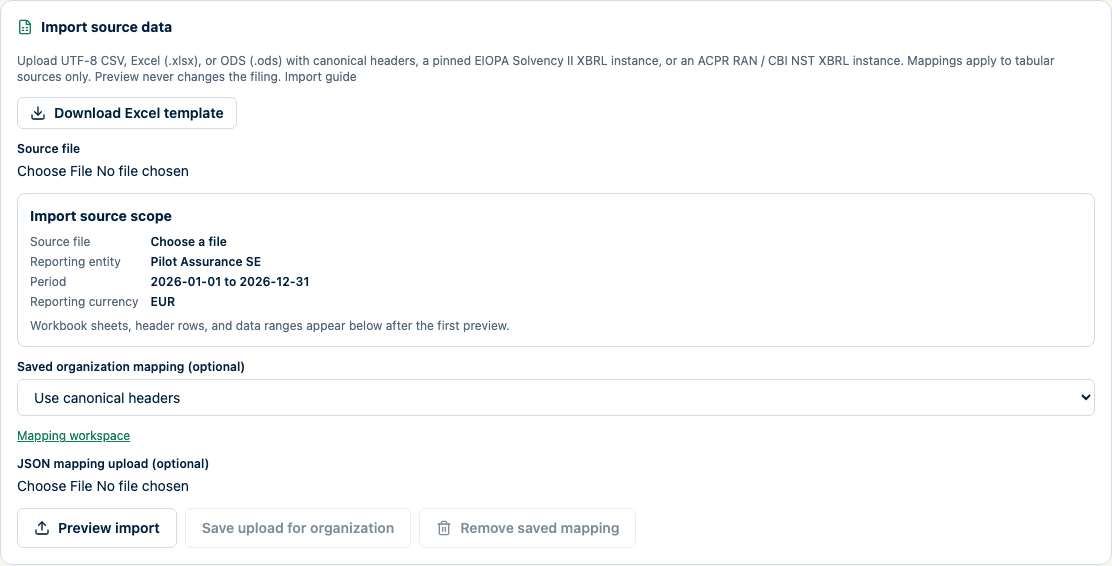
Download the filing template or choose another source and any required tabular mapping before previewing.
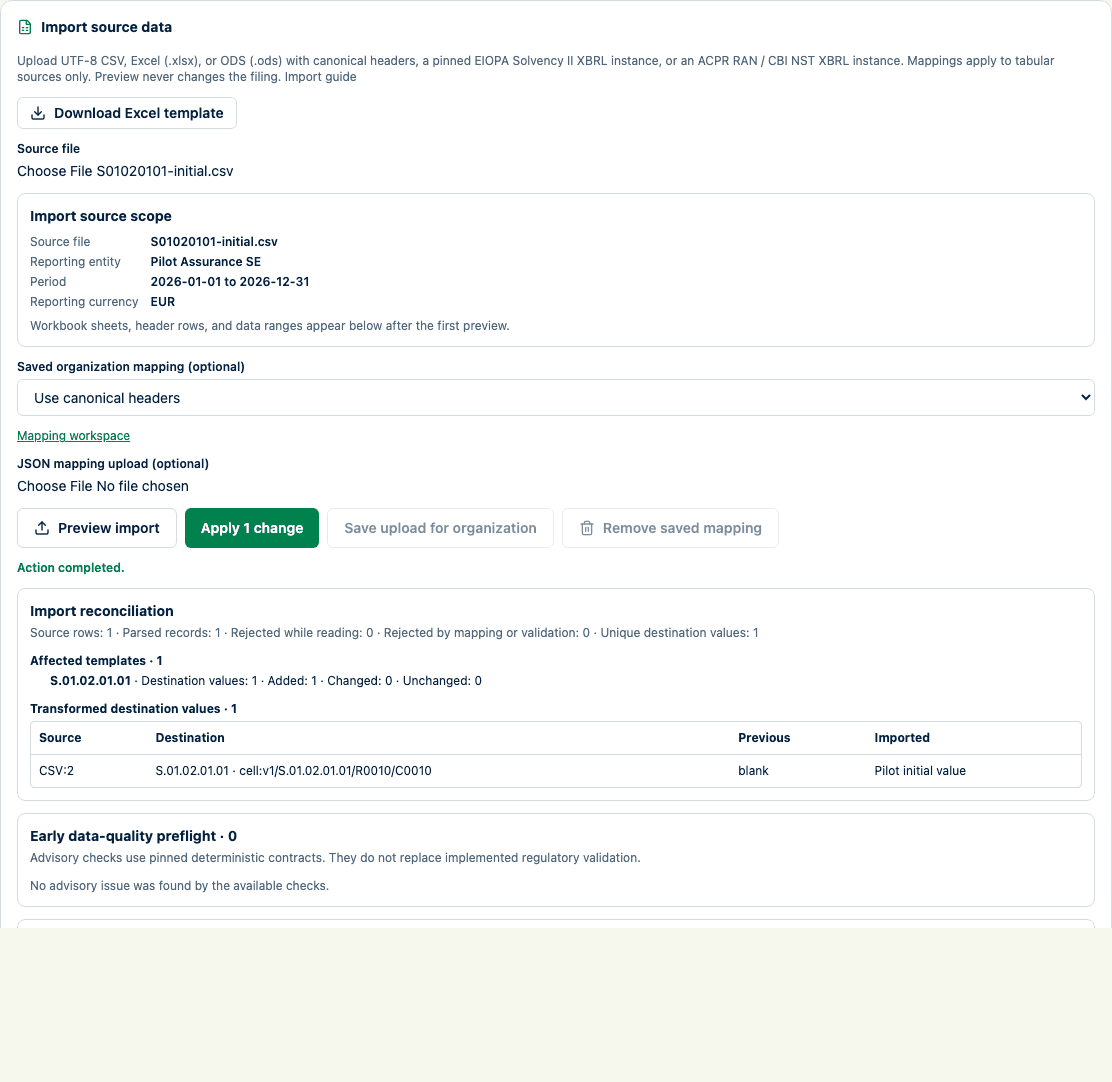
Preview reports the proposed change without modifying the filing.

Preflight findings remain visibly separate from implemented regulatory validation.
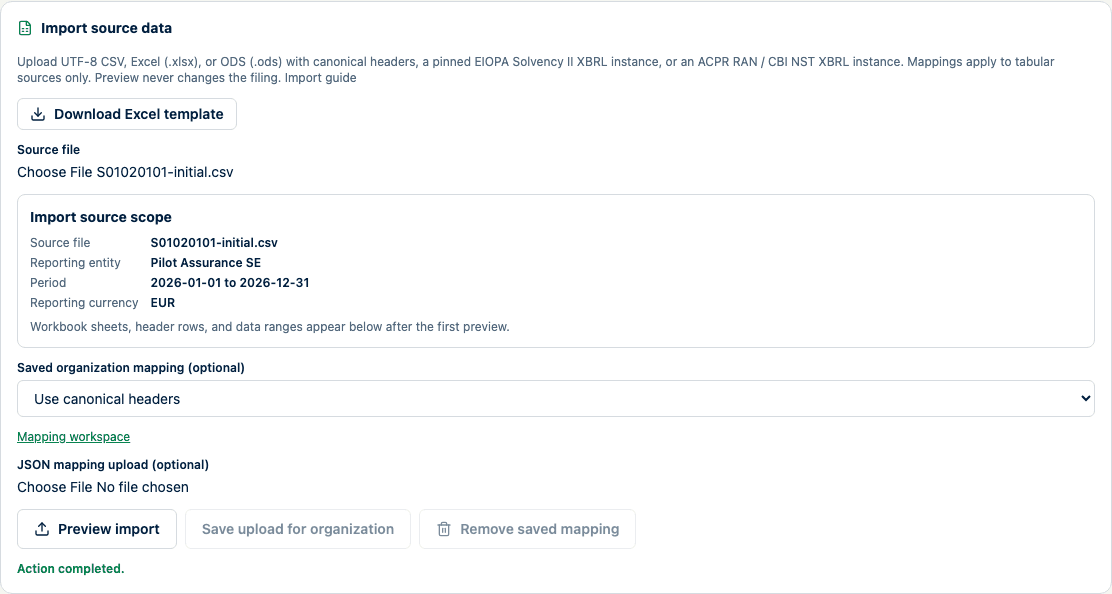
After apply, the panel identifies the committed change set and its source evidence.
Expected result
Preview reports changes without modifying the filing. Apply reparses the uploaded source, verifies the confirmed scope, and commits the validated changes atomically. The filing retains row- and cell-level source lineage.
How to verify
Open affected tables and reconcile a representative sample, totals, dimensions, and the reported change count against the source. Follow lineage back to exact workbook coordinates. Re-run validation and inspect the import audit event.
Common problems
- “Template is not selected” means its applicability is not required for this filing.
- If a required table has no worksheet, stop and download a fresh template after confirming the table in Prepare. A valid repeating worksheet still shows its regulatory title, labelled columns, and blank input rows when no values have been entered.
- Duplicate or noncanonical cell identities are rejected rather than silently overwritten.
- An XBRL entity, instant, taxonomy, unit, context, or dimension mismatch must be resolved in the source.
- Applying reruns the import from the uploaded source; the earlier preview itself is never trusted as input.
- A generated template belongs to one filing. A template downloaded from another filing is rejected even when its forms look similar.
- Blank highlighted cells are ignored; they do not delete existing filing values.
- Do not rename worksheets, remove hidden identifiers, or copy worksheets between generated templates.
- Do not edit the hidden dropdown mapping. The visible label is converted back to its exact regulatory code when the workbook is imported.
- Empty or instruction-only worksheets can remain in a source workbook. Review the inventory warning and exclude sheets that do not contain import data.
- Repeating-form worksheets include 25 ready-to-use rows in addition to existing rows. Add another row to the Excel table when more records are needed.
- Forms with additional contextual axes use a safe normalized fallback so each existing context retains its exact technical identity.
- Depends on filing does not mean optional. It means the installed taxonomy does not define a universal cell-level requirement. Resolve the filing's applicability and validation guidance before deciding whether to leave it blank.
- Formula cells are reported and rejected; formulas are never executed. Supply reviewed value-only cells.
- ODS repeated rows and columns, expanded sheet size, and XML package content are bounded. ODS formulas are refused even when a cached value is present.
- Legacy binary
.xlsworkbooks are not parsed. Convert and review them as.xlsxbefore import. - A hidden sheet is not automatically ignored. Confirm its purpose explicitly.
- A changed workbook boundary or header selection requires a new preview.
- Source-schema drift is a stop-and-review condition, not permission to force a saved mapping.
- An AI mapping proposal is never applied automatically. Saving it records a deterministic mapping; selecting it and running a new preview is still required.
Data consequences
Preview never changes the filing. Apply does. Applying replaces the targeted cell values in one atomic change set. Workbook choices made after a preview do not take effect until you preview again. Keep the source, its checksum, the applied mapping revision, and verification evidence. Partner ingestion follows the same apply service and lineage boundary as a UI upload; the service-account event and confirming user's event remain separate.
Imported record identities in open tables
After an import, open tables display numbered rows even when the mapping uses a source record key. Editing or clearing an imported row keeps its underlying record identity and source history; it does not create a second position. Add a row only when you intend to report another record. Confirm Saved before switching tables, and retry a failed save while your entered values remain in the grid.
Product and regulatory limitations
The complete multi-workbook taxonomy library is intended for reference and testing. It is not a substitute for the filing-specific download, which applies the selected entity, period, taxonomy package, and form applicability. Supported parsing does not mean the source is authoritative, complete, or accepted by an authority. Profile-specific restrictions remain applicable.